


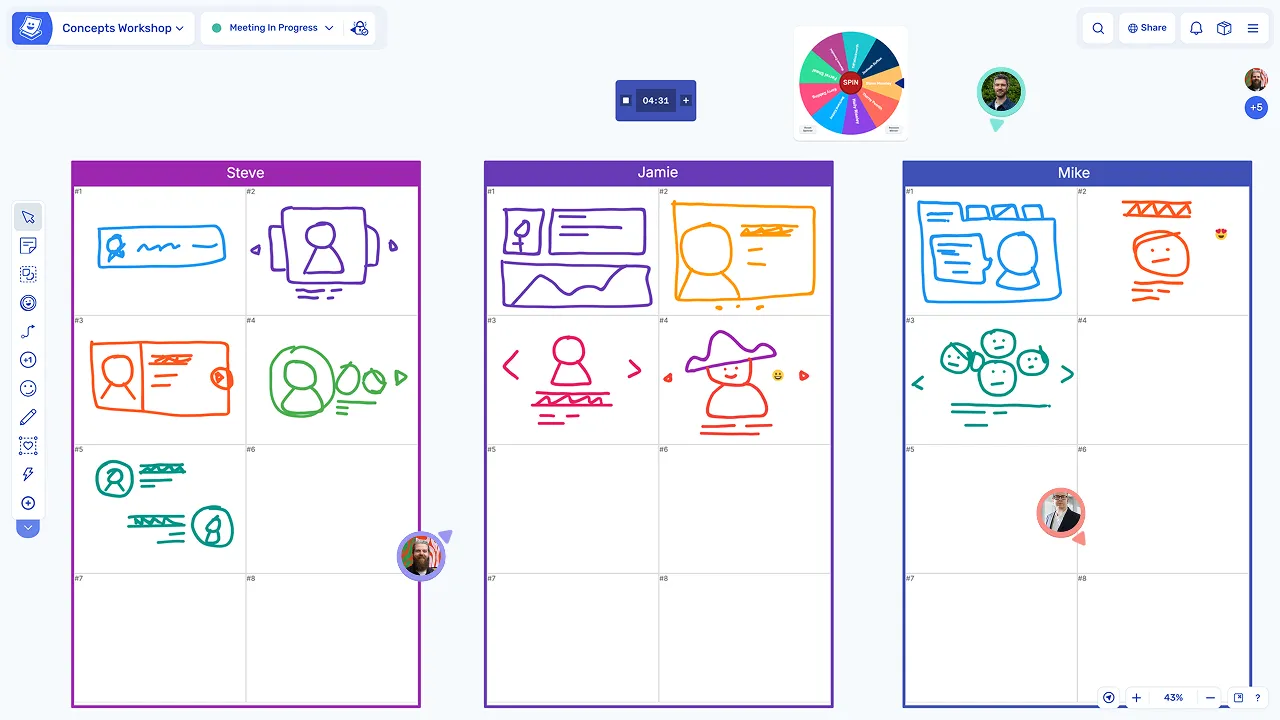

Let’s not even try to sugarcoat this: brainstorming, coming up with new ideas, and team collaboration are usually visual affairs.
Yes, you could do it all by just talking things through, but the process tends to work much better when you can actually see ideas unfolding.
Unfortunately, this is where things get tricky. Really, really tricky, in fact, because what you use to capture those ideas can make or break the whole process.
Take sticky notes, for example. They’re so easy to use, and actually work so well… until there are just too many of them.
Taping sheets of paper to the walls only means you’ll run out of space even faster.
Index cards spread across the table work fine until you have to pack it all up for another day.
And even a physical whiteboard will eventually get too cluttered for anyone to make sense of it anymore.
And that’s all assuming that you can bring everyone into the same room anyway.
Online whiteboard software solves many of these problems by moving visual collaboration onto a computer screen.
With online whiteboards, you can sketch out ideas freely, add sticky notes and comments, move everything around until it all starts coming together, and zoom in and out as the project grows to keep tabs on what’s going on.
There’s no physical wall to run out of space on. No need to document everything before you leave the room. And most importantly, everyone doesn’t have to be in the same place.
But not all online whiteboards work the same way. Some are designed just for quick brainstorming sessions. Others help facilitate long sessions and ongoing team collaboration.
So, in this guide, I decided to walk you through some of the best online whiteboard tools available, show you what each does particularly well, and try to help you decide which might be the best fit for the way you work.
Before we get to the good stuff, though, let’s make sure that we’re on the same page…
What is an online whiteboard?
When I say an online whiteboard, I essentially mean a digital, software version of the traditional whiteboard that you can find in many meeting rooms or offices.
You know what I mean: that blob of white space on a tripod. You’ve seen it millions of times, I’m sure. You’ve used it, and I’m sure it was the source of many a frustration.
Luckily, you can do quite a bit more with its online counterpart, and most of what frustrated you about the traditional whiteboard is gone from it.
The most important aspect of an online whiteboard is that you’re not limited to just drawing or writing on it.
You can add sticky notes, images, diagrams, shapes, text, and even entire documents.
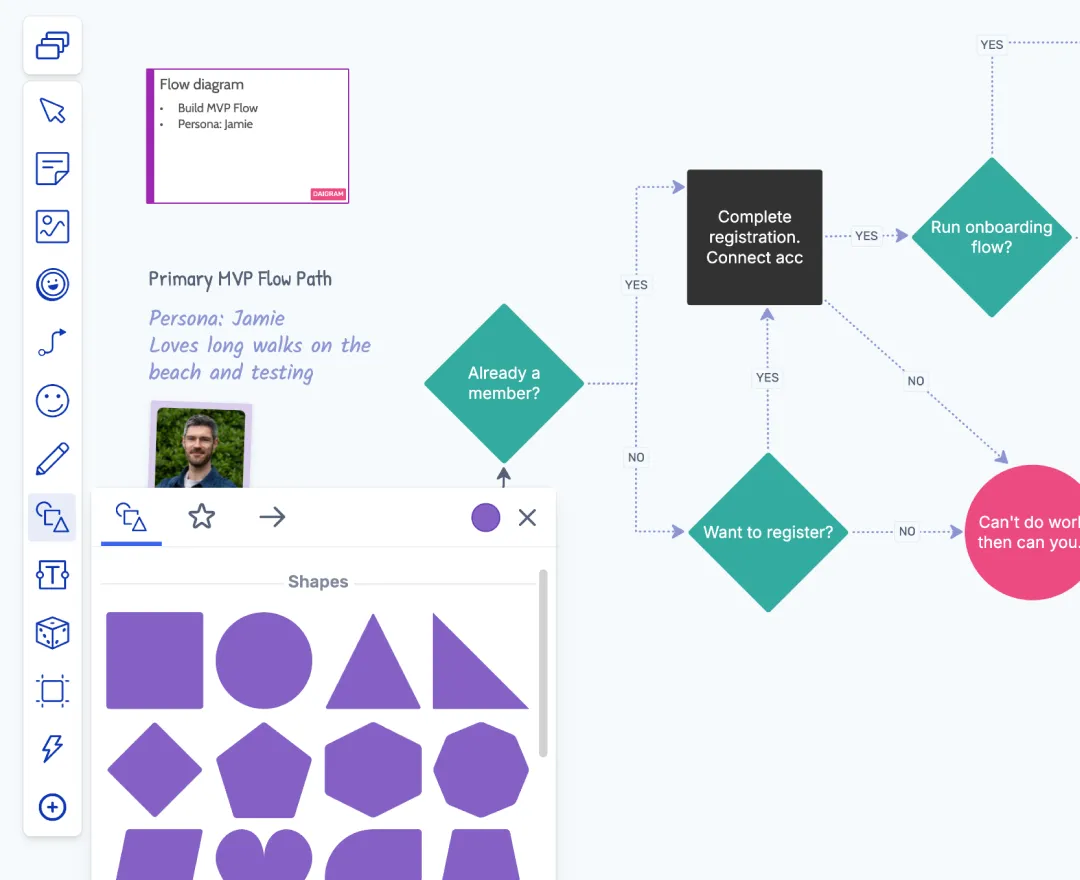
You can move things around, group related ideas together, connect them with arrows, add comments, annotations, and so much more.
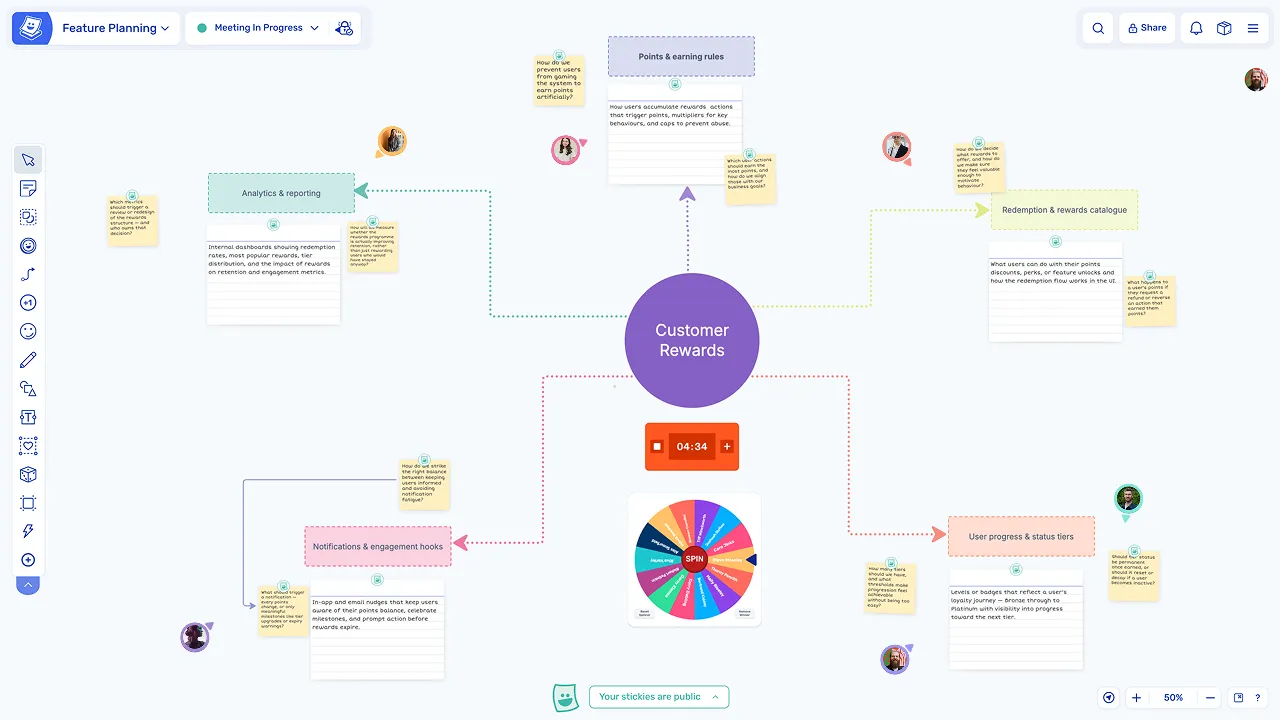
And unlike a physical whiteboard, you don’t have to worry about running out of space. Most online whiteboard tools give you a practically unlimited canvas that you can zoom in and out of as needed.
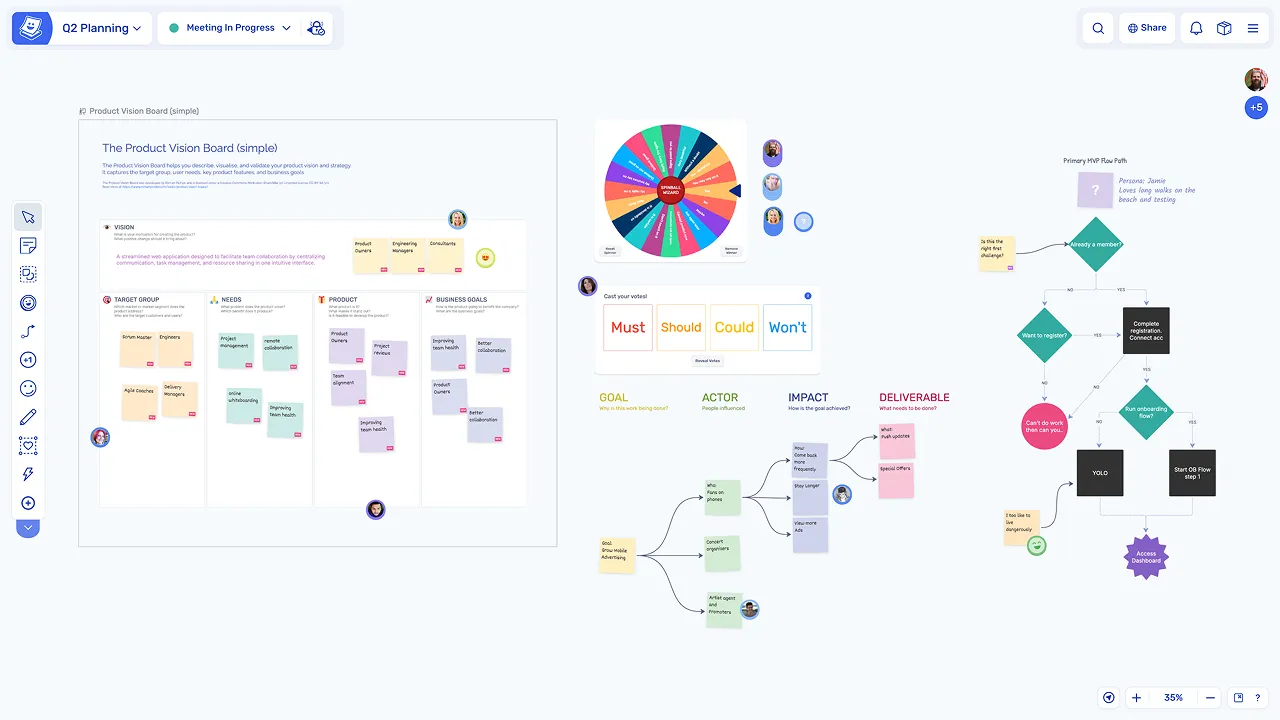
But perhaps the biggest difference between the two is the freedom to collaborate remotely.
Instead of everyone having to gather around the same physical board, with an online whiteboard, people can work together from wherever they happen to be.
As long as they can access the software on their computers, they can participate: add ideas, leave comments, make changes, and see what others are doing, often in real time.
And when the session is over, everything stays exactly where you left it, ready to be picked up when the time comes.
Core Features of A Typical Online Whiteboard
Most online whiteboards offer pretty much the same thing: a digital canvas where you and your team can work on ideas together.
Where they differ is in what you can actually do on that canvas.
So, to begin, here are the main features you can expect in a typical online whiteboard:
- Drawing and visual tools. From sticky notes, shapes, connectors, freehand drawing and text to other elements that let you capture ideas and organise them visually.
- Real-time collaboration. These features allow multiple people to work on the same board simultaneously, see each other’s work, and contribute ideas without having to take turns.
- Meeting facilitation. Features like timers, private writing, anonymous contributions, voting, and controls that help a facilitator guide everyone through a session.
- Templates. Ready-made boards for brainstorming, retrospectives, sprint planning, workshops, and other activities. Particularly useful when you don’t want to build everything from scratch.
- Action tracking. The ability to turn ideas and decisions into actual tasks, assign responsibilities, and follow up on them after the meeting.
- Integrations. Connections to tools like Jira, Linear, or Azure DevOps, so ideas and decisions don’t have to be manually transferred into your team’s existing workflow.
- Easy participation. Simple ways for people to join a board, ideally without creating an account or learning an entirely new application first.
But, and this is something worth remembering as you go through the guide: not every online whiteboard needs to do everything.
A tool for quick sketches and diagrams will have very different priorities from one designed to run agile team meetings.
The trick is figuring out which features you’ll actually use, rather than choosing the software with the longest feature list.
How We Selected and Compared These Tools
No point in denying it: there are quite a few online whiteboard tools out there. And while many offer similar features, they’re not necessarily designed for the same type of work.
So, rather than simply comparing feature lists, we focused on how well each tool supports the activities people actually use online whiteboards for.
In particular, we looked at seven factors:
- Joining and ease of use. How easy is it for someone to join a board and start contributing? Can guests participate without creating an account?
- Facilitation for live sessions. Does the software offer voting, timers, private writing, and other controls that help keep meetings organised and moving?
- Support for recurring team meetings. Are there templates for retrospectives, planning, and estimation? Can teams track actions between sessions?
- Drawing and diagramming. How well does the tool support freehand drawing, shapes, connectors, and more structured diagrams?
- Look, feel, and speed. Is the board clear and easy to navigate? Does the interface help people concentrate on their work rather than the software?
- Templates and integrations. What ready-made activities are available? And how well does the tool connect with applications such as Jira, Linear, Azure DevOps, or meeting software?
- Pricing and participant limits. What can you do for free, how many people can participate, and what does it actually cost to use the software with a team?
Of course, not every factor will matter equally to everyone. Someone looking for a simple sketching tool will have very different priorities from a Scrum Master running retrospectives every two weeks.
We kept those differences in mind when deciding what each tool is best suited for.
7 Best Online Whiteboard Tools for Brainstorming and Creative Collaboration
Spreo: Best for Agile Team Meetings, Retrospectives, and Sprint Planning
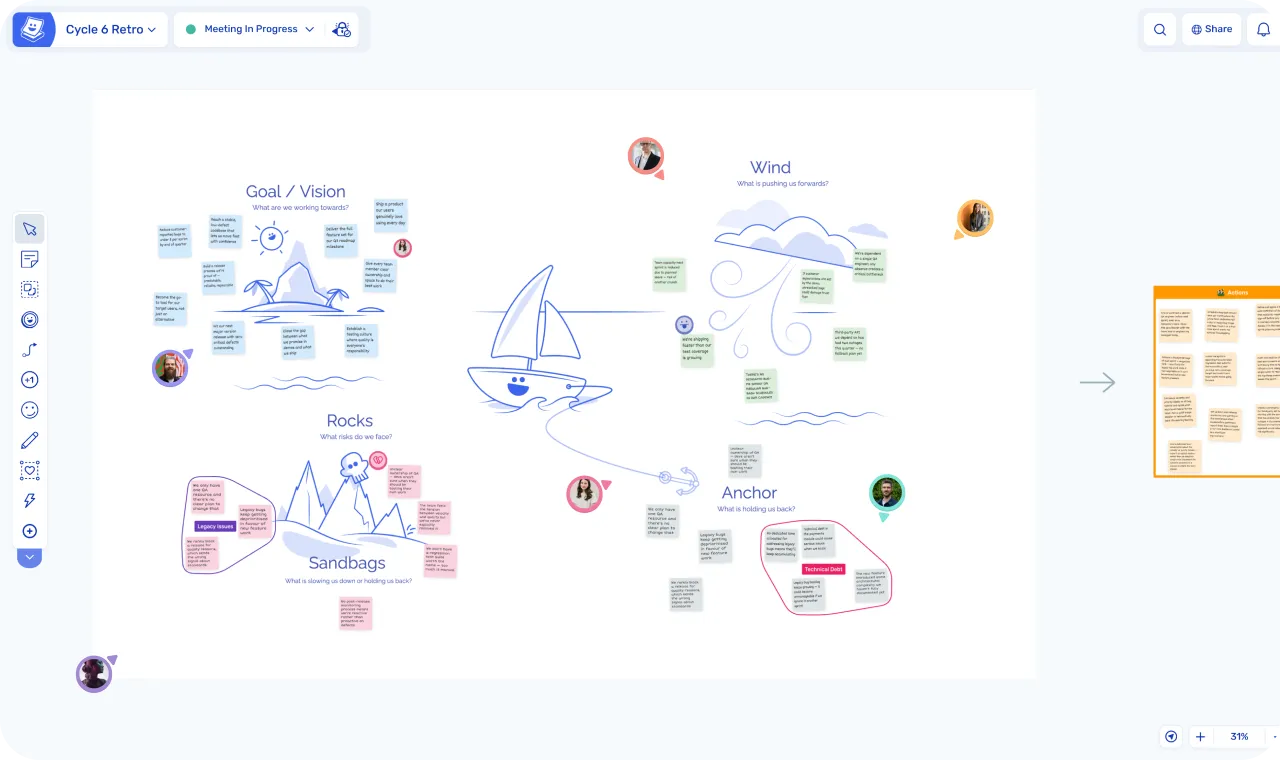
Spreo (formerly Metro Retro) – disclaimer: this is my tool – is an online whiteboard built specifically for the meetings software teams run regularly: retrospectives, planning sessions, estimation, or team workshops.
And that’s an important distinction.
Unlike general-purpose whiteboards that try to accommodate all sorts of visual collaboration, our tool focuses on helping teams run agile meetings, participate in them, and follow up on what happens afterwards.
Of course, it has the usual whiteboard features you’d expect. You can add sticky notes, shapes, connectors, and frames, or draw directly on the canvas using a marker pen.
But there’s quite a bit more to it than that.
Built-in tools for running team meetings
One of Spreo’s main features is Meeting Mode, which gives the meeting host access to a dedicated set of facilitation controls.
These include:
- Private Writing: Participants can write their thoughts privately before sharing them with the group. This is enabled by default.
- Meeting Timer: A timer for keeping activities within an agreed time.
- Hide Identities: An anonymous mode for contributions.
- Ready Check: A way to check whether participants are ready to move on.
- Run Poll: A tool for collecting responses during a meeting.
- Everyone To Me: A host shortcut that brings participants to the host’s location on the board.
- Super Lock: Switches on when a meeting starts and lets the host decide who can unlock locked objects on the board.
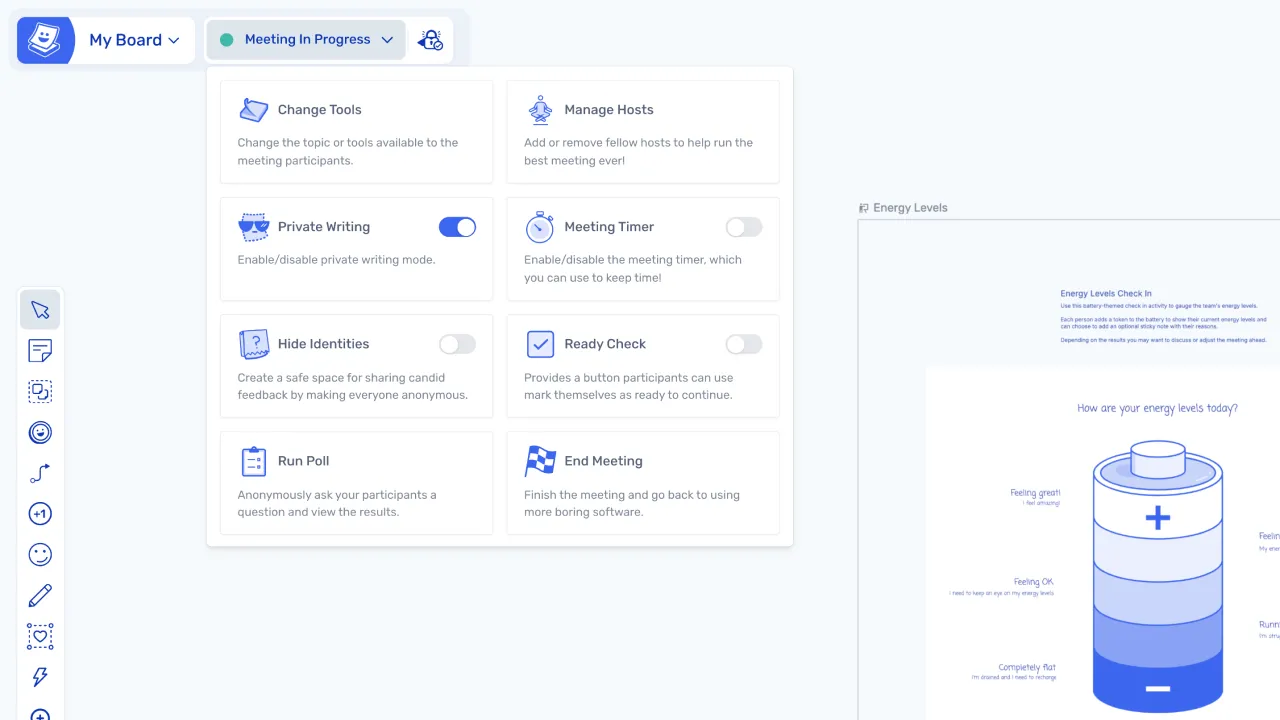
Spreo also supports voting rounds, where participants receive a set number of votes, and Topics for grouping related sticky notes.
For more structured sessions, facilitators can use Activity Frames to organise the board into different activities, hide what’s coming next, and bring everyone to the current frame.
When Meeting Mode is active, the toolbar switches to collaboration tools and the host controls sit at the top of the board. When the meeting ends, the full layout and editing toolbar returns.
Templates for recurring team activities
Spreo includes over 150 templates covering different types of team meetings and activities.
These include retrospective templates, sprint planning, and estimation sessions.
The templates come with the activities already laid out, reducing the amount of setup needed before a meeting.
Teams can also create their own templates and publish them for use across their organisation.
For estimation, there are templates for planning poker and T-shirt sizing.
Turning meeting discussions into actions
One particularly useful capability is Spreo’s built-in action tracking.
After all, coming up with ideas during a retrospective is one thing. Making sure something actually happens as a result is another.
With Spreo, you can turn a sticky note into an action directly on the board.
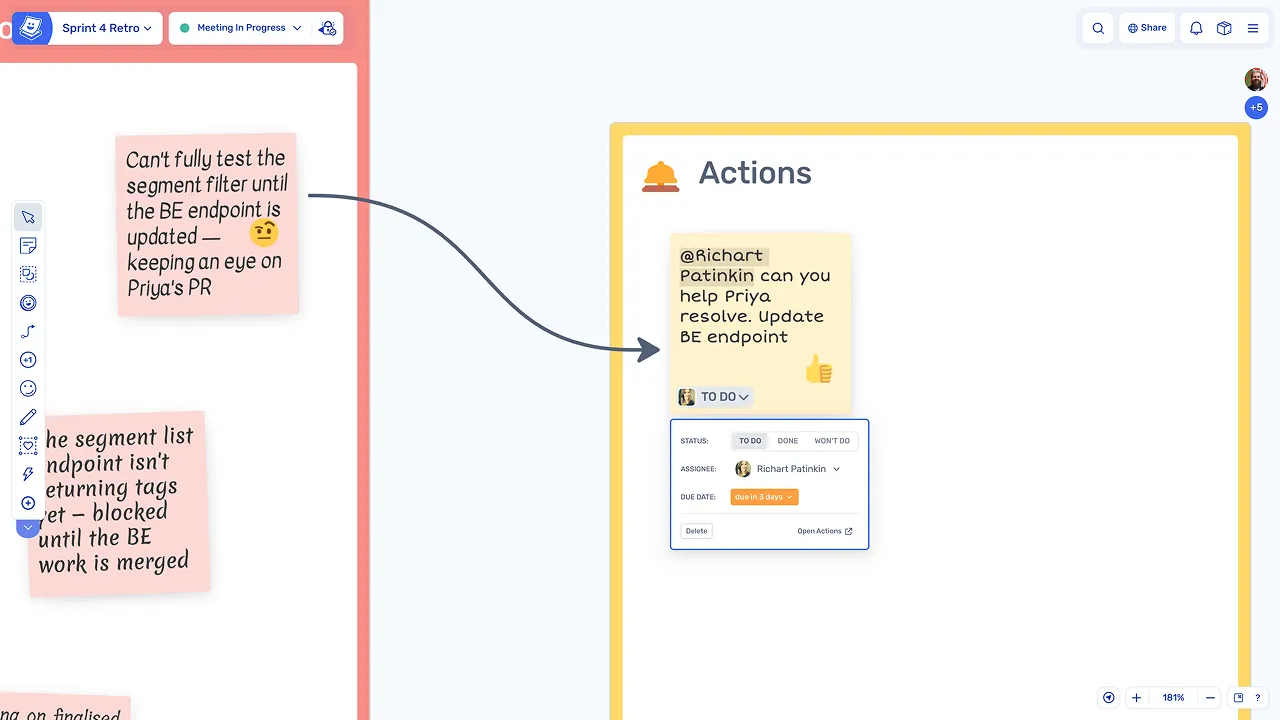
Those actions are then tracked on a dashboard, with email reminders to help teams follow up on them.
This also means actions can carry over between retrospectives, rather than remaining as notes on a board that nobody revisits.
Integrations with development tools
Spreo integrates with Jira Cloud, Linear, and Azure DevOps.
Its Jira integration is particularly extensive, with two-way synchronisation between the whiteboard and Jira.
For example, teams can:
- Import Jira issues using filters or JQL.
- Edit issue fields directly from Spreo.
- Make bulk changes to sprint assignments, story points, or issue statuses.
- Convert sticky notes into Jira issues.
- Have changes written back to Jira immediately.
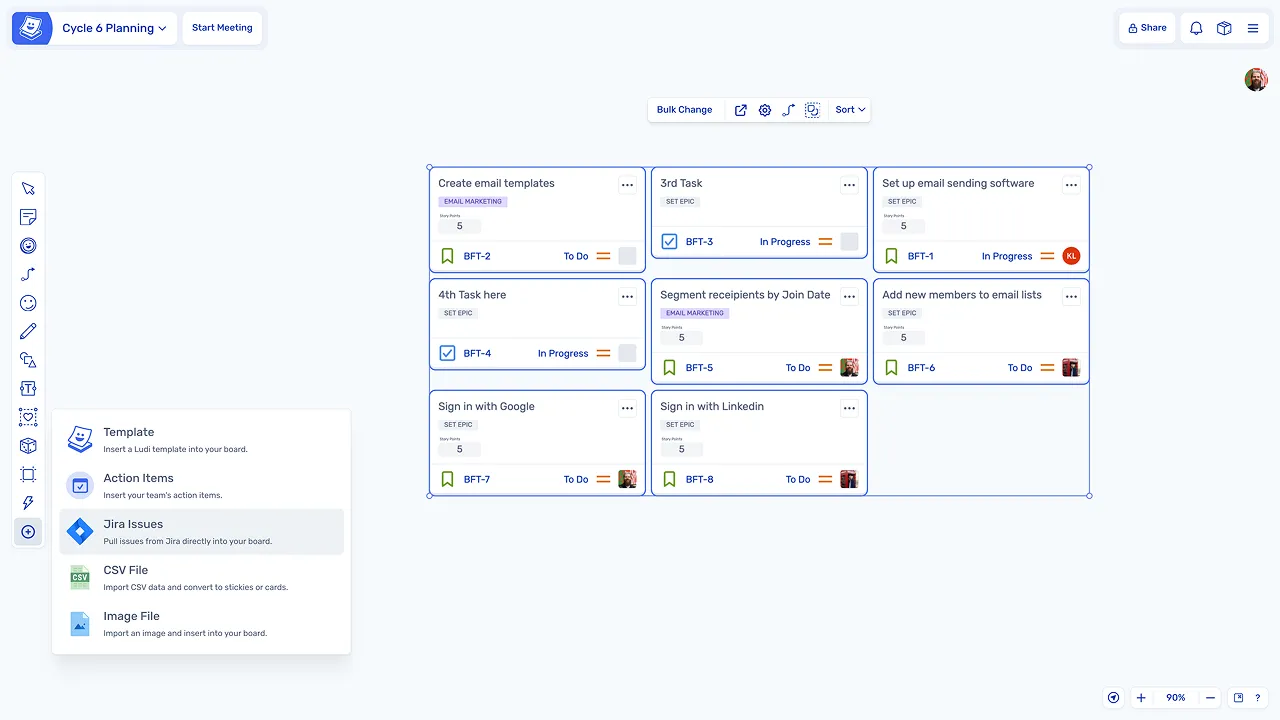
This allows teams to work with Jira issues during sprint planning without having to manually recreate the same information in both applications.
Spreo also offers an MCP server, which allows AI assistants such as Claude and ChatGPT to create, edit, read, and summarise boards. The MCP server is available on every paid plan, and during the free trial.
A more playful approach to team meetings
Here’s another thing that makes Spreo different.
Alongside its facilitation tools, it includes several playful features designed to bring a little more interaction into recurring meetings.
Participants can wear and throw virtual hats, launch confetti, draw with the Vanishing Pen, or use gadgets such as a jukebox, spinner, and buzzer.
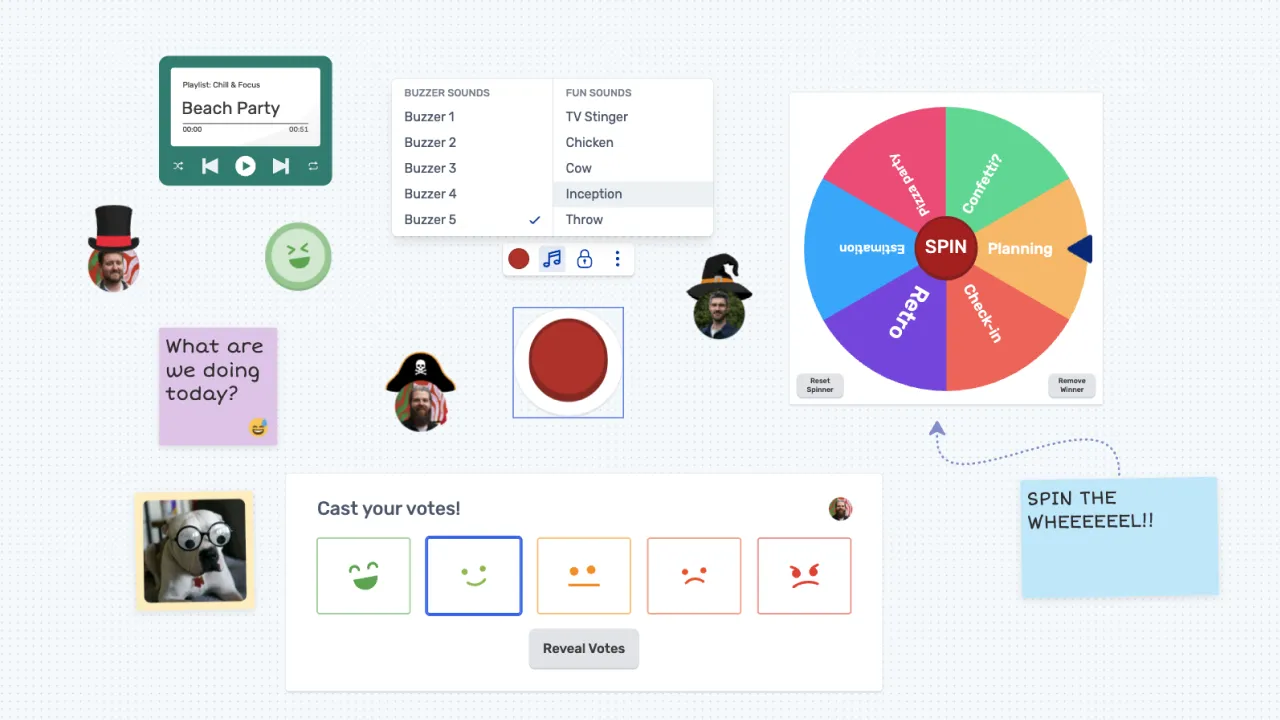
These features aren’t essential to running a retrospective, of course. But they’re part of Spreo’s approach to making regular team meetings more engaging.
Limitations to consider
Spreo’s focus on agile meetings also means it isn’t designed to replace every type of online whiteboard.
There are a few limitations worth knowing about:
- Narrower scope: Spreo isn’t intended for detailed technical diagramming, design work, or company-wide visual collaboration.
- Focused integrations: Its integrations centre on development tools such as Jira, Linear, and Azure DevOps. It doesn’t offer integrations with Slack, Microsoft Teams, or Confluence.
- Desktop-oriented: Spreo runs in Chrome, Firefox, and Edge on laptops and desktops. It doesn’t work offline and doesn’t have a tablet app.
- Limited free version: Spreo Lite supports up to three people, with the board stored in the user’s browser.
- Guest access restrictions: On the Team plan, external participants can join open boards as visitors. Inviting external guests by email requires the Enterprise or Consultant plan.
Spreo also has a smaller template library and fewer integrations than a general-purpose platform such as Miro.
Spreo pricing
Spreo offers several plans, including a free version for small sessions.
| Plan | Pricing | Main details |
|---|---|---|
| Lite | Free | No sign-in required. Up to three people collaborating live, with the board stored in the browser. |
| Team: Editor | $13/user/month annually, or $16 monthly | Unlimited boards, host controls, templates, integrations, and editing capabilities. |
| Team: Collaborator | $3/user/month annually, or $4 monthly | Signs in to the team’s private boards, gets assigned actions, and uses integrations. |
| Team: Visitor | Free | Unlimited visitors on open boards. |
| Enterprise | Custom pricing for 100+ users | Additional controls, external guest access, activity logs, and hosting options. |
| Consultant | $25/seat/month | Designed for facilitators running client sessions, with clients joining as guests at no extra cost. |
The Team plan requires at least one Editor.
As an example, a team of eight people with one Editor and seven Collaborators would pay $34 per month with annual billing, or $44 with monthly billing.
There’s also a 15-day free trial of the Team plan, with no credit card required.
Overall, Spreo is best suited to Scrum Masters, engineering managers, and agile coaches who regularly run retrospectives, sprint planning, estimation sessions, and team workshops. Its distinguishing features are the meeting facilitation controls, action tracking, development-tool integrations, and features designed specifically for recurring team activities.
Miro: Best for Broad Visual Collaboration
Miro is an online whiteboard designed for a wide range of collaborative activities, from brainstorming and workshops to planning and diagramming.
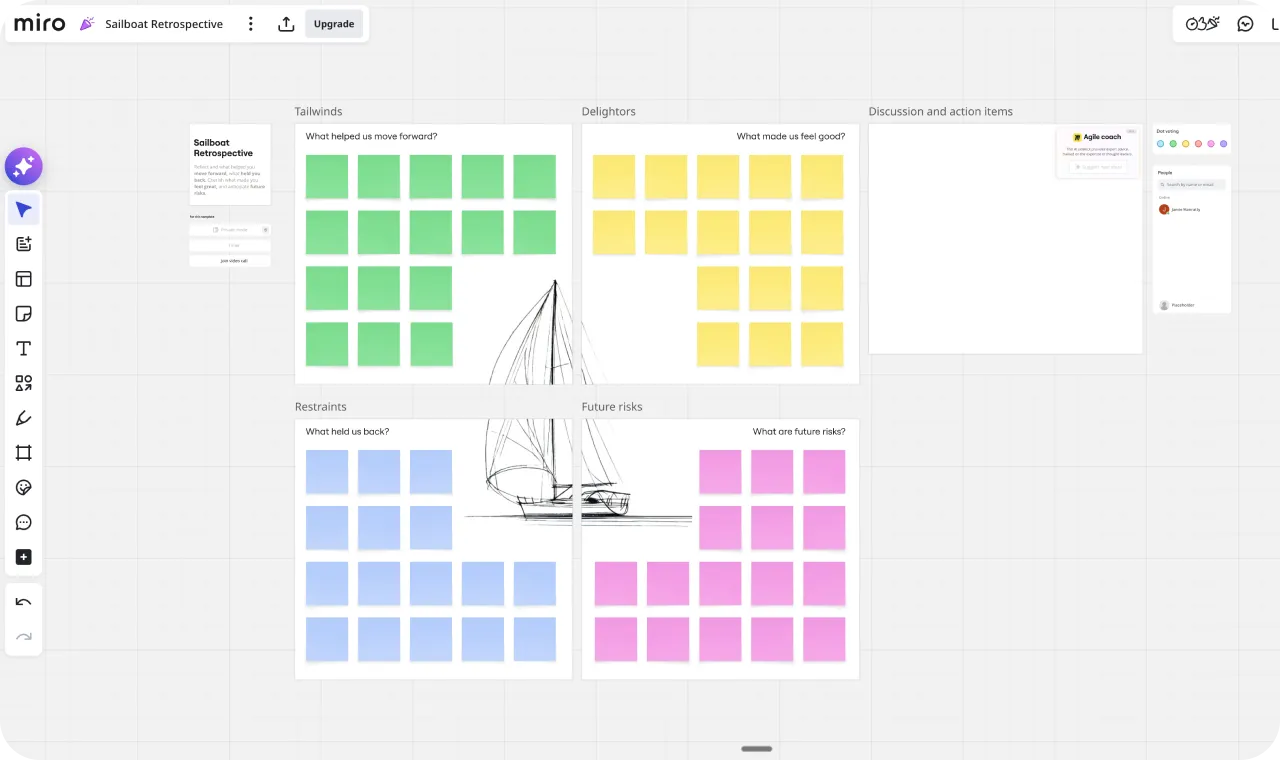
And there’s certainly no shortage of features to help with those activities.
For starters, Miro offers over 7,000 templates, covering different types of work. It also has more than 250 integrations, allowing teams to connect the whiteboard with other applications they already use.
For meetings and workshops, Miro includes facilitation tools such as private mode, voting, and timers. There’s also an estimation app that synchronises with Jira, which is useful for teams running estimation sessions.
However, there’s a trade-off to having so many features.
Miro has a lot of functionality to navigate, which can make it more involved to learn than a tool designed for a narrower set of activities.
It’s also worth noting that the free plan doesn’t include some of the facilitation features mentioned above. Private mode, voting, and timers are available from the Starter plan.
Pricing: Miro offers a free plan with three editable boards. Starter costs $8 per member/month and Business costs $20 per member/month, both billed annually. Enterprise pricing is custom, from 30 members.
Mural: Best for Facilitated Workshops
Mural is an online whiteboard with a particular focus on facilitated workshops.
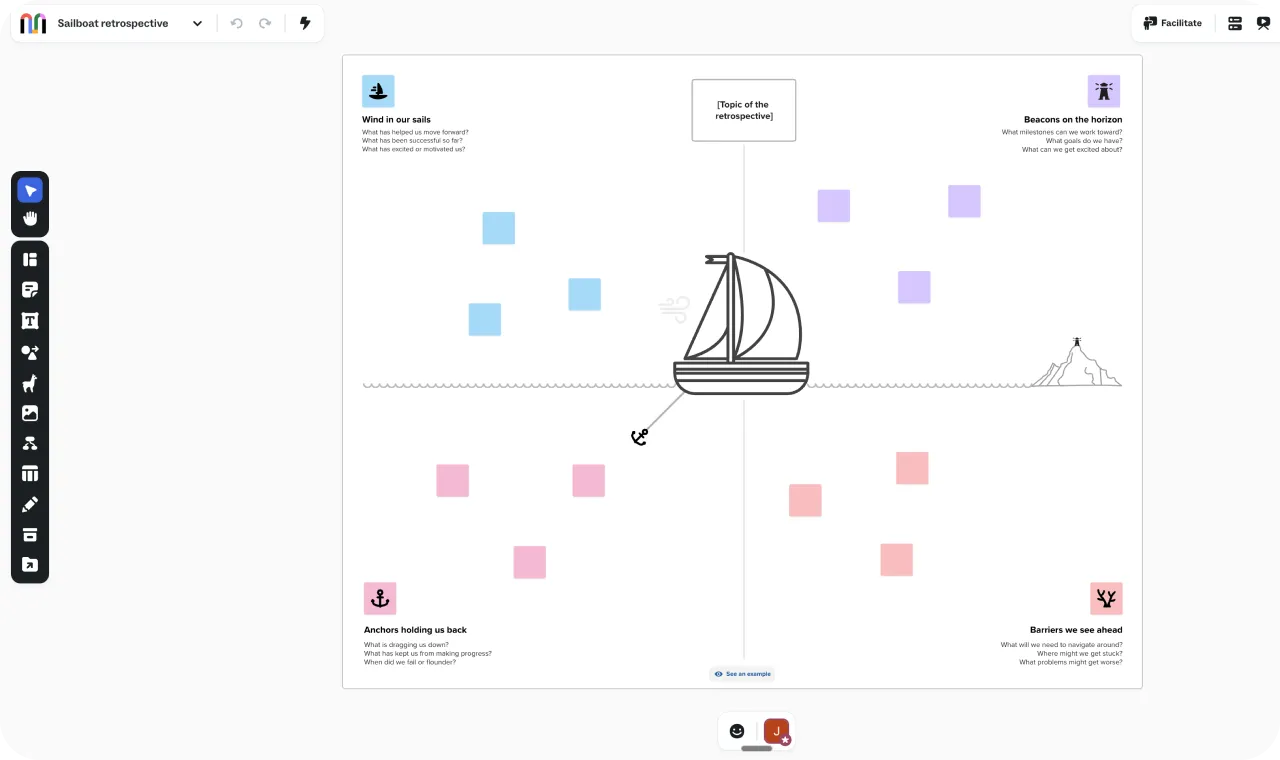
Alongside the usual whiteboard capabilities, it offers tools designed to help facilitators organise and run collaborative sessions.
These include private mode, voting, and timers. And unlike some other online whiteboards, Mural makes these features available on every plan, including the free one.
Mural also supports LUMA workshop methods, giving facilitators structured approaches to different workshop activities. There’s integration with Microsoft 365 Copilot, too.
Of course, Mural isn’t limited to workshops. It can also be used for agile team meetings and other collaborative activities.
However, agile ceremonies are just one of its supported use cases, rather than the specific focus of the product.
One other thing worth knowing is that Mural doesn’t offer native planning poker, which may matter if your team regularly runs estimation sessions.
Pricing: Mural offers a free plan with unlimited murals, although only three can be edited. Team+ starts at $9.99 per member/month billed annually, or $12 when billed monthly. Business costs $17.99 per member/month and is available with annual billing only.
FigJam: Best for Teams Already Using Figma
FigJam is Figma’s online whiteboard, designed for collaborative brainstorming, planning, and working through ideas visually.
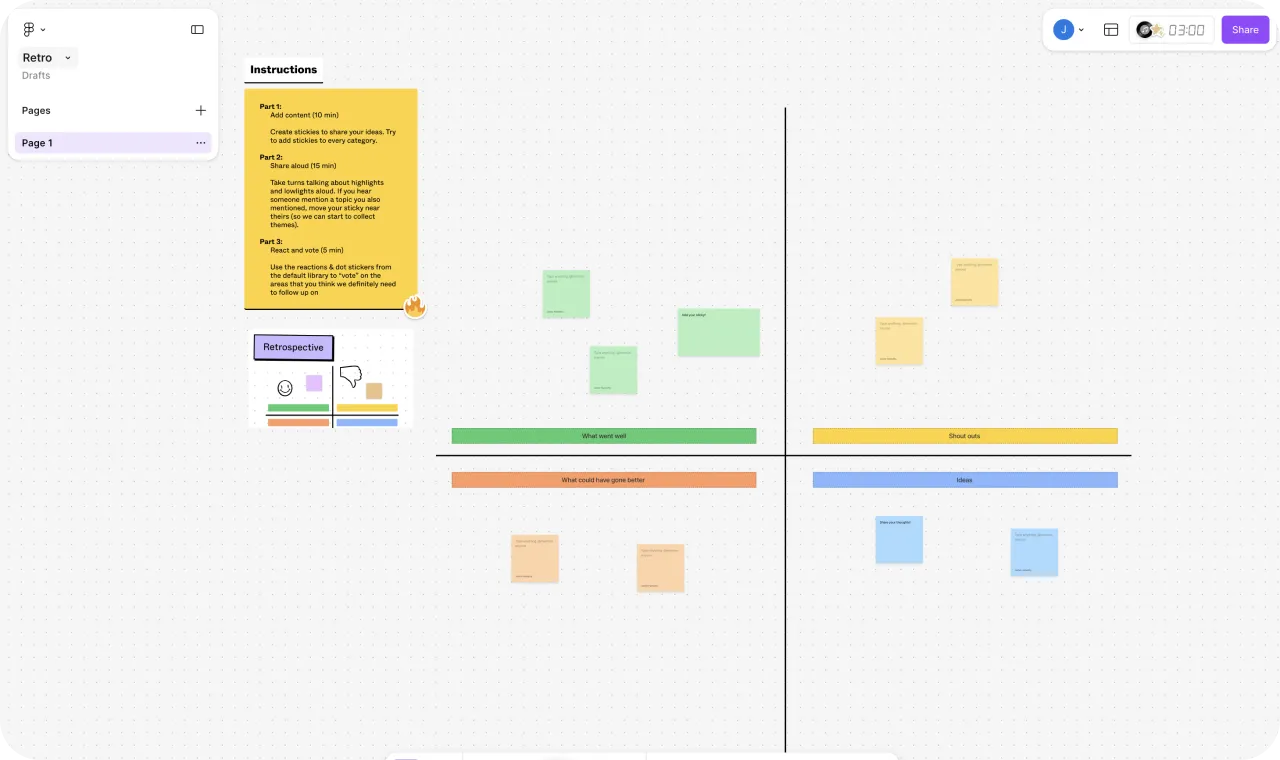
Its main distinguishing feature is its relationship with Figma itself. FigJam sits alongside Figma design files, making it particularly relevant to teams already using the Figma environment.
As you’d expect, it offers familiar whiteboard elements, including sticky notes and drawing tools.
But there are some more playful features, too.
For example, FigJam supports stamps, emotes, and audio, giving participants different ways to interact during a session.
It also includes native tables and widgets for Jira and Asana.
There are some limitations worth knowing about, though.
FigJam’s sticky notes contain text and an optional author name, but they don’t have built-in owners, due dates, or statuses. Follow-up actions can be handled through Jira or Asana widgets, but FigJam doesn’t provide a list of outstanding actions across boards.
There’s also no private writing mode, and the only way to hide who wrote a sticky note is an author-name toggle that anyone can switch back on. That may be important for teams running retrospectives or collecting sensitive feedback.
Pricing: FigJam offers a free Starter plan with three FigJam files. On the Professional plan, collaboration seats cost $3/month and full seats cost $16/month, billed annually. Voting and open sessions require a paid plan.
Microsoft Whiteboard: Best for Quick Sketching in Microsoft Teams
Microsoft Whiteboard is Microsoft’s online whiteboard, available as part of eligible Microsoft 365 work and school subscriptions.
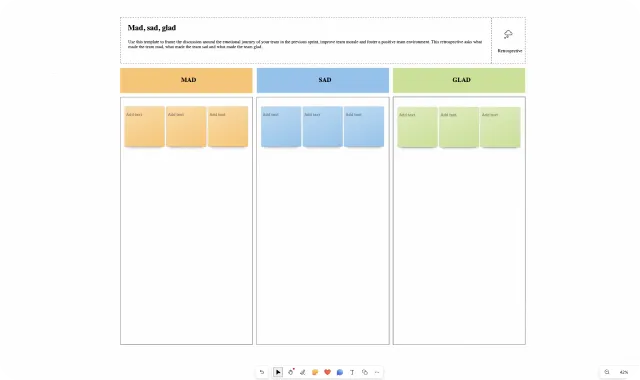
It’s particularly relevant to organisations already using Microsoft Teams, since Whiteboard can be used directly during Teams meetings.
The software focuses on drawing and visual collaboration, with digital ink tools for sketching and working through ideas. It also supports Microsoft Loop components.
One advantage for Microsoft 365 customers is that there’s no separate Whiteboard subscription to purchase. The software is included with eligible plans.
However, Microsoft Whiteboard doesn’t offer all the features found in tools designed specifically for facilitated meetings.
For example, there’s no built-in voting, which means teams running activities that require voting would need another way to handle that part of the session.
There’s also an important change to be aware of.
Microsoft retired its standalone Whiteboard apps for Windows, iOS, and Android on 16 October 2026. Whiteboard continues to be available through Microsoft Teams and on the web for eligible work and school accounts.
Personal Microsoft accounts can no longer create or edit boards.
Pricing: Microsoft Whiteboard has no standalone subscription. It’s included with eligible Microsoft 365 work and school plans.
Lucidspark: Best for Teams Already Using Lucidchart
Lucidspark is an online whiteboard for brainstorming, collaborative planning, and working through ideas visually.
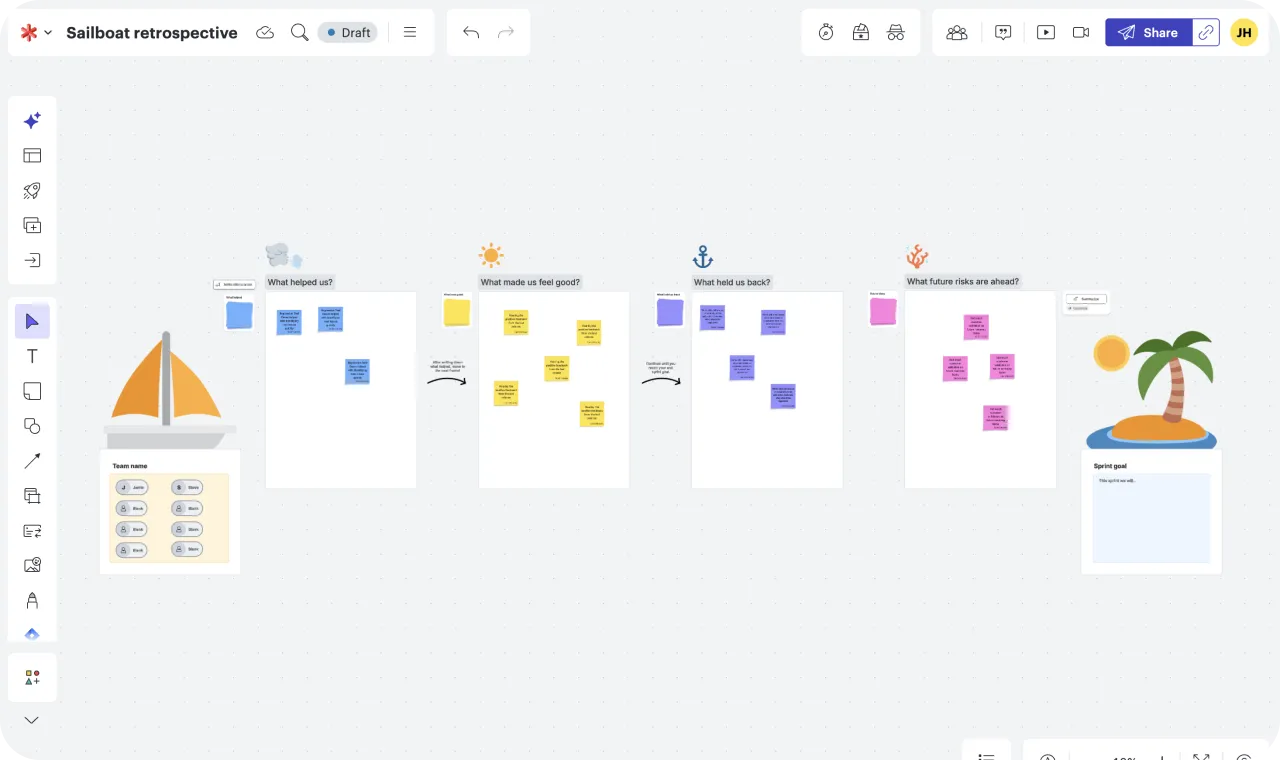
One of its distinguishing features is its connection with Lucidchart.
Teams can use Lucidspark to collect and organise ideas, then move that work into Lucidchart for more structured diagramming.
Lucidspark also supports estimation activities that update Jira or Azure DevOps, making it relevant to teams that use those applications to manage their work.
There are facilitation features, too, including voting, timers, and private mode.
However, not all of these are available on every plan.
Voting sessions and timers require the Team plan, while private mode is reserved for Enterprise. Integrations with Jira, Azure DevOps, and Smartsheet are also available on Enterprise.
So, depending on how you plan to use Lucidspark, it’s worth checking which subscription includes the features you need.
Pricing: Lucidspark offers a free plan with three editable boards and basic dot voting, but without voting sessions or timers. Individual costs $9/month and Team costs $10 per user/month, billed annually. Enterprise pricing is available through sales.
Excalidraw: Best for Lightweight Sketching and Diagrams
Excalidraw is an open-source online whiteboard focused on sketching and diagramming.
And one thing that immediately distinguishes it from the other tools on this list is its appearance.
Instead of polished, presentation-style diagrams, Excalidraw uses a distinctive hand-drawn look.
It also keeps the process of joining a collaborative board straightforward. You can share a link with someone, and they can participate without creating an account.
The free version supports unlimited collaborators, and Excalidraw offers end-to-end encryption.
However, Excalidraw doesn’t include some of the features found in online whiteboards designed for running meetings and workshops.
For example, there are no built-in voting tools, meeting timers, or private writing features.
It also doesn’t offer dedicated templates for running structured team meetings.
So, if you need a whiteboard primarily for drawing, sketching ideas, or creating diagrams together, Excalidraw covers those activities without requiring a dedicated meeting facilitation platform.
Pricing: Excalidraw is free to use, with unlimited collaborators. Excalidraw Plus costs $6 per user/month billed annually.
Which Online Whiteboard Software Should You Choose?
Well, that depends on what you actually need the whiteboard for.
If you’re running regular sprint retrospectives, your requirements will be quite different from those of a designer sketching ideas or a facilitator organising a one-off workshop.
Here’s a quick comparison to help you narrow down your options.
| Your main need | Best option | Why choose it | Main trade-off |
|---|---|---|---|
| Agile team meetings and sprint planning | Spreo | Built-in private writing, voting, timers, action tracking, and two-way Jira integration. | Not designed for detailed technical diagramming or broad company-wide visual collaboration. |
| General visual collaboration | Miro | Extensive template library and integrations covering a wide range of activities. | More functionality to learn and navigate. Facilitation features require a paid plan. |
| Facilitated workshops | Mural | Facilitation tools available on every plan, plus LUMA workshop methods. | No native planning poker for estimation sessions. |
| Design collaboration | FigJam | Works alongside Figma design files, with interactive features such as stamps, emotes, and audio. | No private writing mode or built-in action tracking across boards. |
| Quick sketching in Microsoft Teams | Microsoft Whiteboard | Included with eligible Microsoft 365 subscriptions and available during Teams meetings. | No built-in voting; primarily suited to sketching rather than structured facilitation. |
| Brainstorming that leads to diagrams | Lucidspark | Connects with Lucidchart, allowing teams to develop ideas into structured diagrams. | Several facilitation features and integrations require higher-tier plans. |
| Lightweight sketching and diagramming | Excalidraw | Free, open-source, account-free collaboration, and a distinctive hand-drawn style. | No built-in voting, timers, or dedicated meeting templates. |
The important thing to remember is that the best online whiteboard isn’t necessarily the one with the most features.
It’s the one that supports the activities your team actually needs to do, without making those activities unnecessarily complicated.
Frequently Asked Questions
What is an online whiteboard?
An online whiteboard is essentially a shared digital canvas where people can brainstorm, draw, sketch, and work on ideas together.
Think of a traditional whiteboard, except everyone can contribute from their own computer, even if they’re nowhere near the same room.
You can add sticky notes, shapes, drawings, and text, move things around, and see what other participants are doing in real time.
Teams typically use online whiteboards for brainstorming, planning, workshops, and collaborative meetings.
What is the best free online whiteboard?
Well, that depends on what you want to do with it.
If you just need somewhere to sketch ideas or draw diagrams with other people, Excalidraw is a good option. It’s free, supports unlimited collaborators, and doesn’t require anyone to create an account.
Miro and Mural are worth considering if you want to try more general-purpose whiteboards. Both offer free plans with three editable boards.
And if you’re looking for something to run small team meetings, Spreo Lite lets up to three people collaborate for free. There’s also a 15-day trial of Spreo’s full Team plan, with no credit card required.
Which online whiteboards let guests participate without an account?
Quite a few do, actually. However, there are differences in what guests can do and whether you’ll need a paid plan.
Here’s how the tools on our list compare:
- Excalidraw: Anyone can join through a shared link, without creating an account.
- Spreo: Lite doesn’t require signing in. On the Team plan, visitors can join open boards without an account.
- Miro: Visitors can join and edit through public links on paid plans. On the free plan, they have view-only access.
- Mural: Visitors can join through a link, with editing available on paid plans. Free-plan visitors have view-only access.
- FigJam: Paid plans support open sessions that let people participate without a Figma account. These sessions last 24 hours.
- Microsoft Whiteboard: External participants can join during a Teams meeting, provided the organisation’s administrator allows it.
Which online whiteboard is best for agile ceremonies?
Spreo is specifically built for agile team meetings, including retrospectives, sprint planning, and estimation sessions.
It includes features such as private writing, voting, timers, and action tracking directly within the whiteboard. There’s also two-way Jira integration, allowing teams to work with Jira issues during planning sessions.
And because these meetings tend to happen regularly, Spreo includes playful features such as virtual hats and confetti to help keep sessions engaging.
Miro is another option, particularly if your team also needs a whiteboard for other types of collaboration. Its Starter plan includes private mode, voting, and an estimation app that synchronises with Jira.
Which online whiteboard is best for remote workshops?
For one-off facilitated workshops, Mural is worth considering.
It offers facilitation features such as private mode, voting, and timers on every plan, including the free one. It also supports LUMA workshop methods for running structured activities.
Spreo, on the other hand, is particularly suited to workshops and meetings that software teams run regularly, such as sprint planning sessions, retrospectives, and team kickoffs.
Its Activity Frames let facilitators organise a session into different stages, hide upcoming activities, and bring everyone to the relevant part of the board when it’s time to move on.
How does an online whiteboard differ from a diagramming tool?
The biggest difference is what you’re trying to achieve.
An online whiteboard is primarily about working through ideas together. You might use one to brainstorm, collect feedback, plan a project, or run a team meeting.
A diagramming tool, on the other hand, focuses on creating structured, accurate diagrams, such as flowcharts, process maps, or technical diagrams using standard notations like UML.
Of course, there’s some overlap.
For example, Lucidspark is designed for collaborative brainstorming, while Lucidchart focuses on structured diagramming. The two applications work together, allowing teams to move from brainstorming into more formal diagrams.