


Prompts to try
Create your Spreo account, connect your agent, then ask one of these.
Scrum Masters and facilitators
“Make a retrospective for our team based on what's happened this sprint.”
Product management
“Group last month's customer feedback into themes on a Spreo board.”
Team members
“Draw a flowchart of the feature I'm building on a Spreo board, so I can walk the team through it.”
“I'm a bit of a perfectionist, so it used to take me about five attempts to get a board I'd put in front of a client. Now I talk it through with Claude until we've covered everything, and the Spreo MCP builds the first version in one go. Five iterations has become two.”
Spreo MCP tools
What your assistant can do in Spreo
Spreo can build mind maps, flowcharts, retros, org charts, timeline roadmaps, planning boards, and more.
Build a board
A new board in your team space, layout done for you.
Edit a board
Add, reword, recolour and arrange content.
Find your boards
Search and filter boards across your teams.
Read boards
Read every sticky, zone and card on your boards.
Copy a board
Clone a previous board and adapt it.
Place teammates
Add team avatars to your boards.
Add illustrations
Generates images in Spreo's style for themed boards.
Organise your backlog
From Jira, Linear or Azure DevOps, map your backlog on a board.
How teams use it
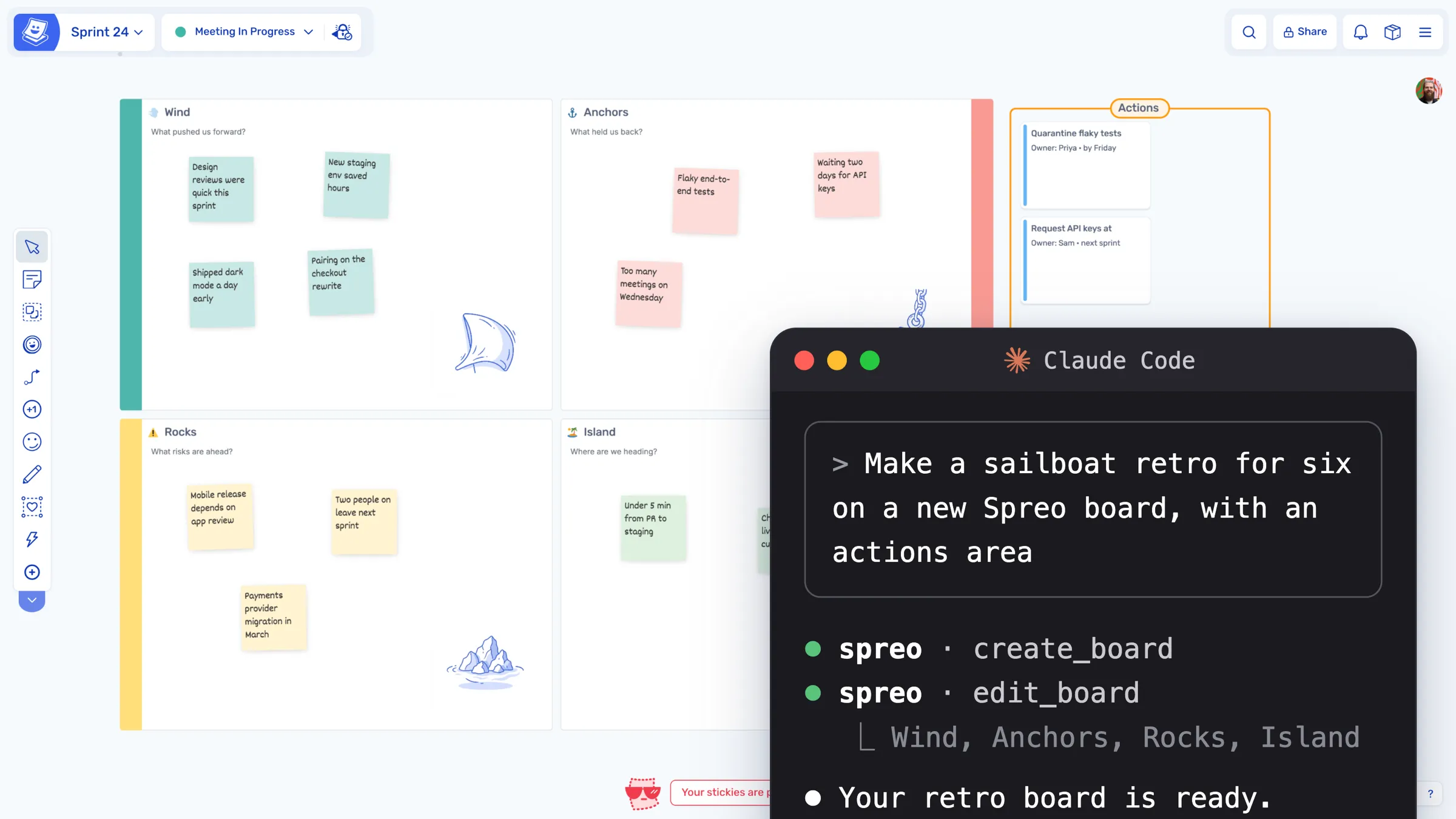
Prep a themed retro
Ask for a sailboat retro for six people, with prompts and space for actions. You get a zone for each section, sized for six, each with its own illustration. Give it a couple of minutes of tidying and it's ready to run.
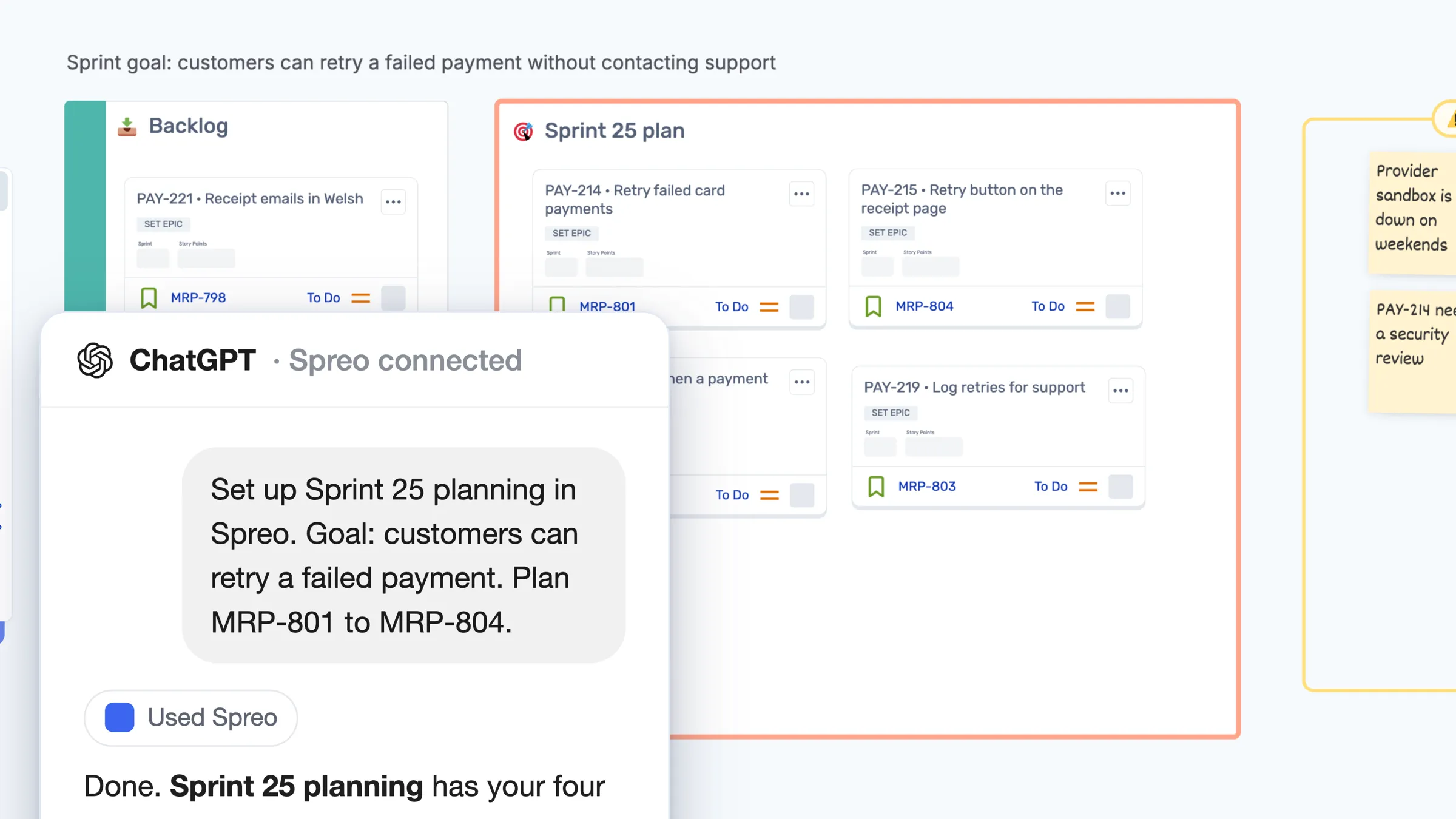
Build a sprint planning or refinement board
Give it the sprint goal and the issue keys you'll be discussing. It sets out zones for the backlog, the plan and the risks, with the Jira cards already placed.
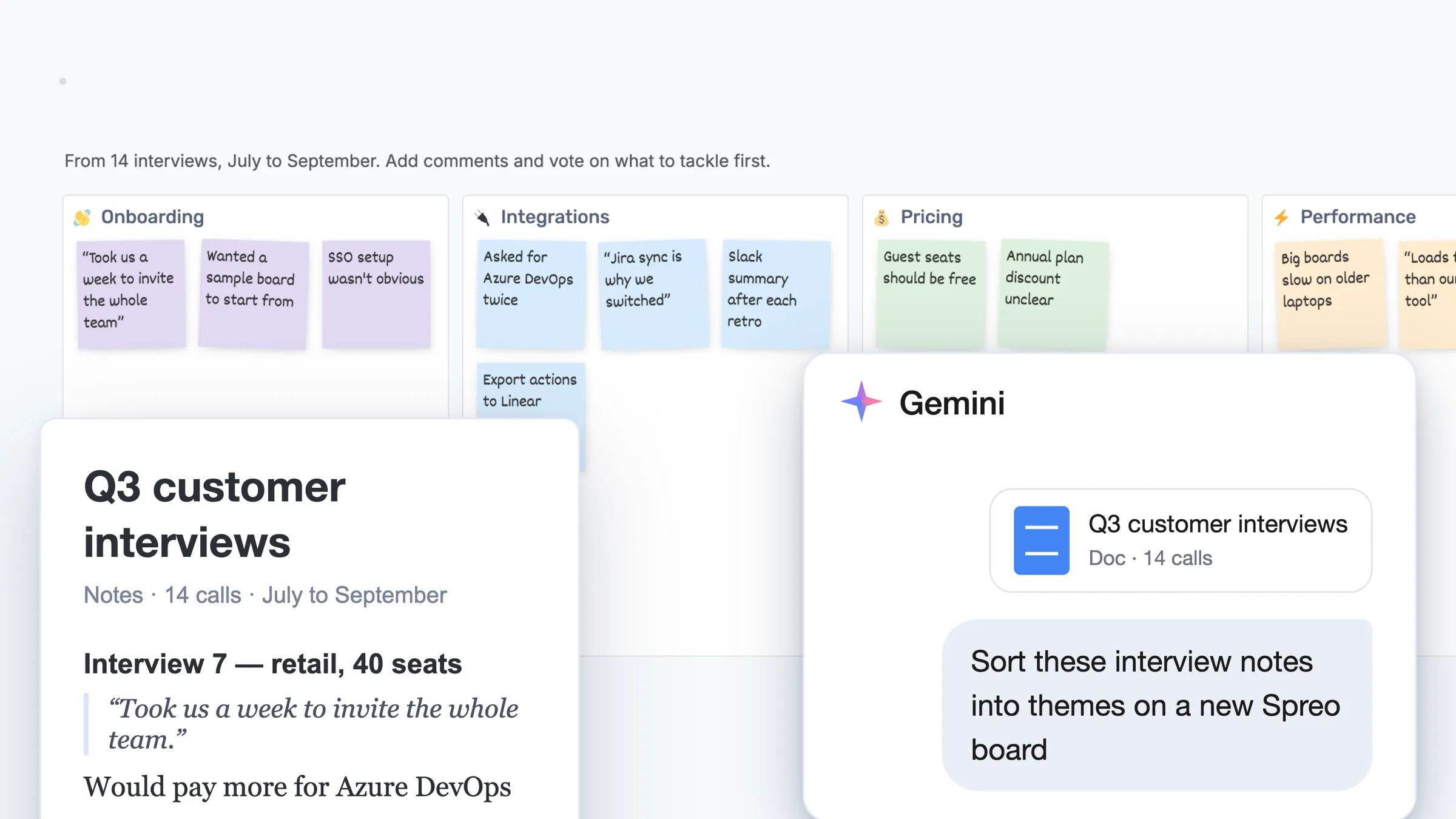
Turn a doc, spec or export into a board
Paste in a spec, a spreadsheet of customer feedback or your meeting notes. It sorts them into themes on a new board your team can comment on.
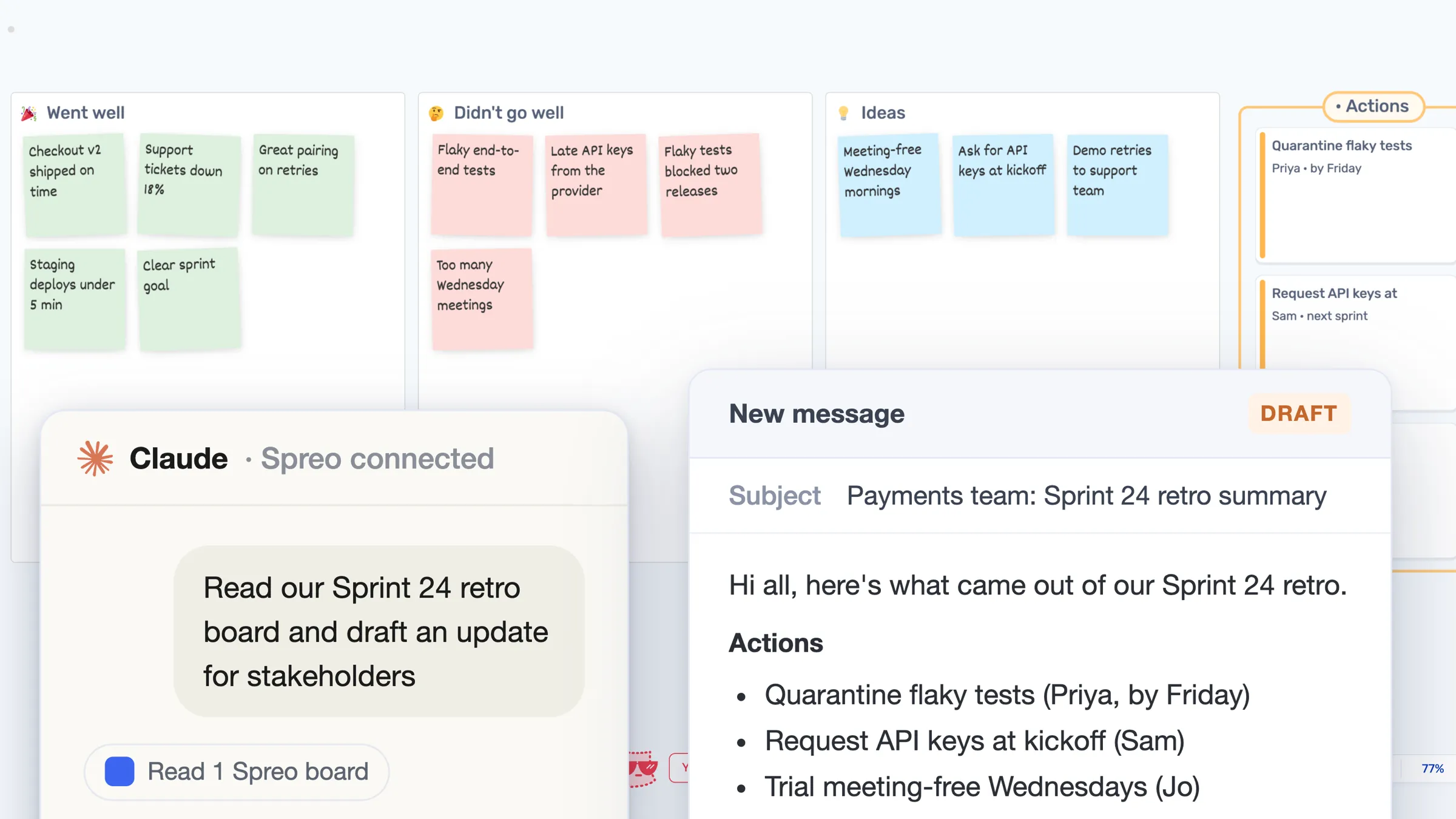
Turn a finished board into an update
Ask it to read the retro and draft a note for stakeholders, with the themes and the actions you agreed.
Connect your AI assistant
Every assistant follows the same short steps: add a custom connector, paste the server URL, sign in to Spreo and authorise.
Server URL
It’s in beta, so for now you add it by hand. On company Claude or ChatGPT plans, your admin may have to allow custom connectors first.
Using another assistant?
The MCP docs cover Copilot, Cursor, VS Code and other clients.
Claude
- Open Settings, then Connectors.
- Choose Add custom connector.
- Name it Spreo and enter the URL
https://spreo.io/mcp. - Choose Connect. A Spreo window opens.
- Sign in to Spreo if needed, then choose Authorize.
Spreo then shows up in your connector list.
ChatGPT
- Open Settings, then Apps & Connectors.
- Under Advanced settings, turn on Developer mode.
- Return to Apps & Connectors and choose Create or Add connector.
- Name it Spreo, enter the URL
https://spreo.io/mcp, and set authentication to OAuth. - Save, choose Connect, and sign in to Spreo.
- Choose Authorize.
ChatGPT moves these settings around now and then. If your menus don’t match, look in settings for connectors or apps, then for a developer or custom option.
Claude Code
- Run this in your terminal:
claude mcp add --transport http spreo https://spreo.io/mcp - Run
/mcpinside Claude Code and follow the sign-in prompt.