


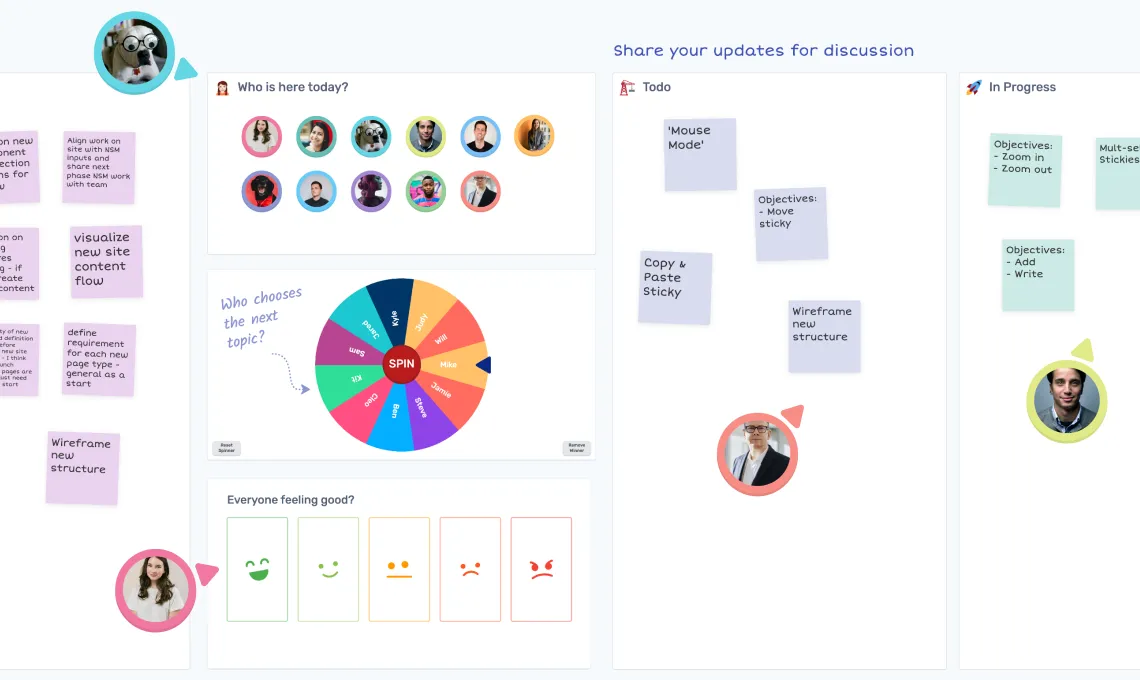

Whenever I talk about visual collaboration, I remember something a friend once said:
“Being in the same online meeting is rarely the same as working together.”
It’s so true. Think about your last meeting.
Even though you already began, half of the people’s cameras were still off. Minutes into the session someone was still trying to figure out the tool. It probably didn’t take long for one person to dominate the session, with the rest spacing out. And not long after the kickoff, what was meant to be a productive session became an exercise in self-control.
I suppose some of it is part and parcel of such meetings. But not all. No. In fact, I’d say that quite a lot of these issues could be avoided just by using the right tools.
That’s why I’ve put together this guide: to help you find a visual collaboration tool that makes brainstorming, planning, and remotely working together easier. And, well, hopefully, more enjoyable, too.
Before we get to that, though, I think it’d make sense to cover some basics.
What are visual collaboration tools?
Whenever I use the term visual collaboration tools, I usually mean various software applications that allow people to work together on ideas, plans, and decisions using a shared digital workspace.
Note something important here. Even though we’re talking about visual collaboration, we actually mean working together on ideas, making plans, evaluating options, and so on. Yet not creating graphics or other visual elements.
That’s because the “visual” element of those tools is there only to make such collaboration possible.
Think of a physical whiteboard covered in sticky notes, sketches, diagrams, and everything else your team might use during an in-person meeting. All those elements are there only to help organise information. But they are not the end in themselves.
It’s the same with visual collaboration tools. However, in this case, everyone is able to contribute to that board from their own computer, regardless of where they happen to be.
Naturally, there’s quite a bit more to them than simply putting sticky notes on a screen.
For example, you can use these tools to brainstorm ideas, organise feedback into topics, plan projects, run workshops, and make decisions together.
Depending on the tool, participants can also write their ideas privately before sharing them, vote on proposals, leave comments, or work through different activities with the help of timers and other meeting controls.
One important distinction, though.
Visual collaboration tools are just one part of the broader remote collaboration software landscape. They aren’t the same as chat applications, video conferencing platforms, or project management tools.
Their main purpose is to give people a shared space to actually work through something together, rather than simply talk about it.
Core features of a typical visual collaboration tool
You already know that most visual collaboration tools give teams a shared space to brainstorm, plan, and work through ideas together.
But what makes them particularly useful for remote teams is the functionality that helps everyone participate, keeps meetings organised, and makes sure the work doesn’t disappear when the session ends.
Of course, different tools offer unique capabilities. However, there is something I’d call a standard set of features to expect from such a tool:
- Shared visual workspace: A digital canvas where participants can add sticky notes, draw diagrams, arrange ideas, and work together in real time.
- Templates: Ready-made templates for brainstorming, planning, retrospectives, workshops, and other team activities. Some tools also let you create your own templates for meetings you run regularly.
- Real-time and/or asynchronous collaboration: Multiple people can contribute simultaneously, while comments, mentions, and notifications allow discussions to continue between meetings. Some tools also support voting or activities that remain open for hours or days.
- Easy participation: Options for inviting people to join through a link, ideally without creating an account. Guest access and editing permissions vary considerably between tools and plans.
- Meeting facilitation: Features such as timers, private writing, anonymous contributions, voting, polls, and controls for guiding participants through different activities.
- Decision-making: Tools for grouping ideas, prioritising suggestions, and voting on the options the team considers most important.
- Action tracking and follow-up: The ability to turn ideas into tasks, assign owners and deadlines, and revisit outstanding actions. Some tools also let you transfer tasks into Jira or other project management applications.
- Integrations: Connections to video conferencing platforms, communication applications, and project management tools, so teams can collaborate without constantly moving information between applications.
- AI capabilities: Depending on the tool, AI can help group ideas, summarise discussions, or generate diagrams. Some platforms also let you connect your own AI assistant.
How I selected and compared these tools
There are quite a few visual collaboration tools out there. And although many seem to offer similar features, they aren’t necessarily designed for the same kind of work.
So, rather than simply comparing feature lists, I focused on what each tool actually offers to help remote teams work together.
In particular, I looked at nine factors:
- Support for remote working sessions: Does the tool offer templates and features for brainstorming, planning, workshops, agile meetings, and decision-making?
- Real-time and asynchronous collaboration: Can everyone work together live? Can people also contribute later through comments, recorded walkthroughs, or activities that stay open for a set period?
- Ease of participation: Can someone join through a link without creating an account? Can they contribute straight away, or are there restrictions?
- Facilitation and decision-making: Does the tool offer timers, private writing, anonymous voting, polls, and controls that help facilitators guide the meeting?
- Templates and recurring meetings: Can teams create their own templates and reuse them? Can they carry work forward from one session to another?
- Action tracking: Can you assign owners and deadlines, follow up on decisions, or transfer actions into project management software?
- Guest access and integrations: How easily can external participants join? Does the tool work with video conferencing, communication, and development applications?
- Pricing: What’s available for free, which features require a paid plan, and what would a team of eight actually pay?
- AI capabilities: Can AI help organise or summarise ideas? Can you connect your own AI assistant, and how much control do you have over what it does?
I also looked at each tool’s limitations, because a feature isn’t much use if it’s unavailable on your plan or doesn’t work the way your team needs it to.
Here are the tools I evaluated.
9 best visual collaboration tools
Summary
| Tool | Best for | Remote collaboration use cases | Strength | Limitation | Price |
|---|---|---|---|---|---|
| Spreo | Engaging agile team meetings | Retros, sprint planning, estimation, brainstorming, workshops, roadmaps, icebreakers and all-hands | Easy for everyone to join and take part: Visitors join from a link with no account. Hand-illustrated templates and playful touches bring energy to remote sessions, and host controls such as Private Writing keep the facilitator in charge. | Built for live sessions, with no async rounds or deadlines. Guests on secure boards need Enterprise or Consultant. | Free Lite plan for up to 3 people. Team: Editor $13, Collaborator $3 per user, or $16 and $4 billed monthly; Visitors free. 15-day trial, no card. |
| Miro | Company-wide visual collaboration | Brainstorming, workshops, planning, agile meetings, decision-making, async updates | One canvas for the whole organisation, live or async, with 7,000+ templates and apps for Zoom, Teams, Webex and Google Meet. From Starter, visitors edit through a public link with no account or paid seat. | Timer, voting and private mode need Starter; polls, quizzes, breakouts and guests who can edit need Business. Comments and vote results can’t be exported. | Free (3 editable boards); Starter $8 or Business $20 per member a month, billed yearly |
| Mural | Method-led facilitated workshops | Workshops, brainstorming, voting and decisions, planning, research synthesis, agile meetings | Timer, anonymous voting and private mode are on every plan, Free included. LUMA’s 36 design methods each come with a template, so a facilitator can run a known method instead of building each session from scratch. | Visitors can only view on Free, and guests need Business. Follow-up goes out through Jira, Asana, Linear or GitHub, with no built-in action tracker described. | Free; Team+ $9.99 per member a month billed yearly, or $12 monthly; Business $17.99 billed yearly |
| FigJam | Teams already using Figma | Brainstorming, diagramming, meetings and workshops, retros and standups, roadmap planning | Every Full, Dev and Collab seat includes FigJam, so teams in Figma don’t pay again. On paid plans, guests join 24-hour Open Sessions without an account, and boards open inside Zoom, Teams and Google Meet. | The free plan has 3 files and no guest sessions, voting or AI. No facilitator role: anyone in the file runs the timer and can end a vote. | Free (3 files); Collab seat $3 a month billed yearly, or $5 monthly |
| Lucidspark | Teams already using Lucidchart | Brainstorming, workshops, planning, retrospectives, prioritisation | Brainstorms become Lucidchart diagrams without being redrawn, by export or on the same canvas. Team adds guests without accounts, a timer, voting and facilitator tools at $10 per user a month billed yearly. | Starting private mode, breakout boards and the Jira, Azure DevOps and Asana integrations all need Enterprise. | Free (3 boards); Team $10 per user per month billed yearly; Enterprise on request |
| Conceptboard | Sovereign, German-hosted whiteboarding | Workshops, brainstorming, planning, voting, review and sign-off | Hosted in Germany on every plan, with German-owned clouds, a dedicated server or on-premises available and a published ISO 27001/27017/27018 certificate. Guests join free with a link and a name, and cards become tasks that sync with Jira and Azure DevOps. | The Free plan has no timer, voting or moderation, and German-owned hosting costs extra from Advanced (10+ users, 12 months). No AI features yet. | Free; Starter €5 per user a month; Advanced from €10 (10+ users, yearly); excluding VAT |
| Creately | Collaborative diagrams and flowcharts | Diagramming and process mapping, brainstorming and mind maps, retros, planning boards, voting | 70+ diagram types with shapes and connectors set up, on one shared canvas with live cursors and comments. Shapes can hold data and tasks, and Jira, Azure DevOps and GitHub items sync both ways. | Free caps each diagram at 45 shapes, with no image or PDF export. A standalone timer and private writing aren’t on Creately’s pages. | Free; Pro $5 per editor a month billed yearly, or $8 monthly; Business $89 a month per organisation billed yearly |
| Confluence Whiteboards | Teams already on Confluence | Brainstorming, sprint and PI planning, retrospectives, voting, diagramming, async feedback | Whiteboards come with Confluence Cloud at no extra cost and sit next to the team’s pages. Sticky notes turn into Jira work items on every plan, and Rovo can summarise a board into a page. | Free has no guests or public links and allows 3 active boards per user. Anyone on the board can end private mode or a vote. | Free for up to 10 users; Standard $7.15 per user a month, or $720 a year for up to 10 users |
| Parabol | Guided agile meetings | Retros, Sprint Poker, async standups, check-ins, team health checks, card-based brainstorming | Each meeting runs in fixed phases that the facilitator takes everyone through, so nobody builds a board first. Any retro phase can run against a deadline, which suits teams across time zones. | Not a whiteboard. Everyone needs an account and joins the team; there’s no guest role. | Free for 2 teams and 10 meetings a month; Team $8 per active user a month, billed monthly |
Spreo: best for engaging agile team meetings
Spreo (formerly Metro Retro, and yes, this is our tool) is an online whiteboard built specifically for the meetings agile teams run regularly: retrospectives, sprint planning, estimation, backlog refinement, brainstorming, and workshops.
And that’s an important distinction.
Unlike general-purpose whiteboards designed for all sorts of visual collaboration, Spreo focuses on helping teams run meetings, get everyone involved, and follow up on what happens afterwards.
Of course, it has the usual whiteboard functionality. You can add sticky notes, organise ideas, create diagrams, and work together on a shared canvas.
But there’s quite a bit more to it than that.
Spreo combines meeting facilitation tools, hand-illustrated templates, and some rather playful features to make remote collaboration easier and, hopefully, more enjoyable.
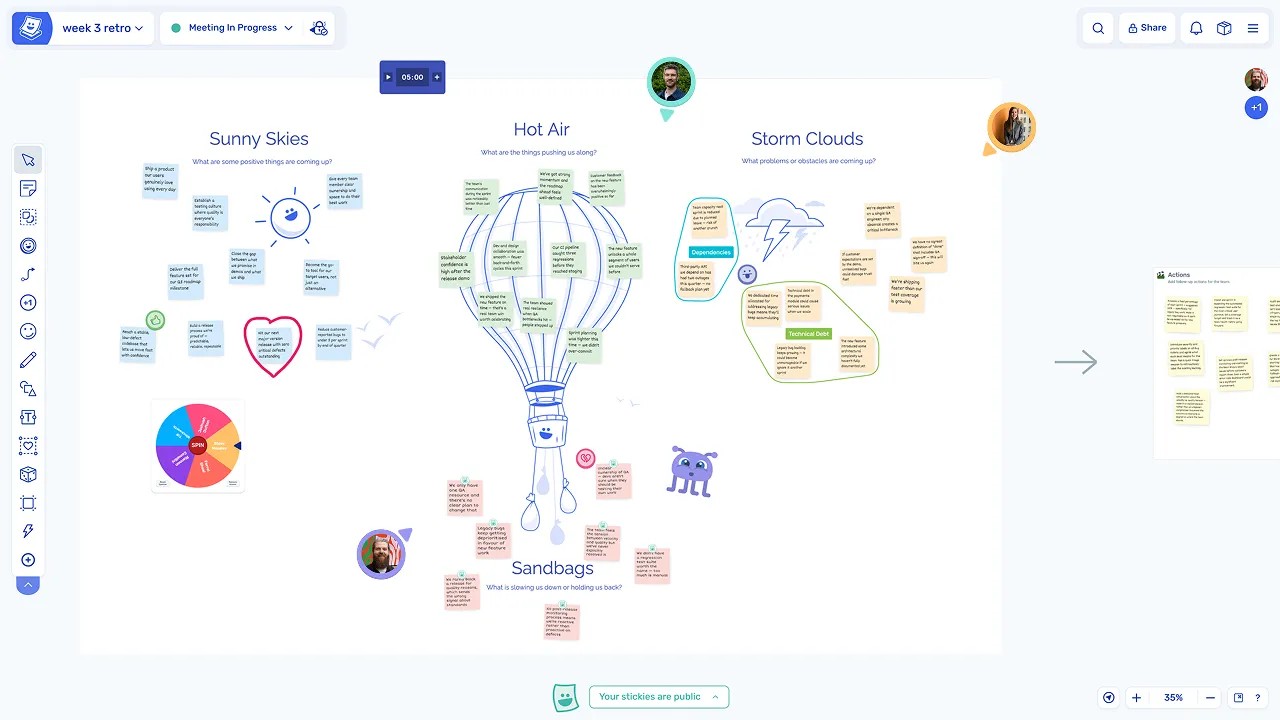
Here’s what that means in practice.
Making it easy for everyone to participate
Here’s a problem I’m sure you’ve encountered before.
You’re about to start a remote workshop, but someone can’t access the board. Another person needs to create an account. And before anyone has contributed an idea, you’re already spending time explaining how to use the software.
Spreo tries to make that part as easy as possible.
On the Team plan, you can share a link to an Open board, and participants can join as Visitors directly in their browsers.
They don’t need to create an account or sign in, and there’s no limit on how many visitors can join.
Once inside, they can participate in the activities you’ve prepared, without having to navigate the full set of whiteboard editing tools.
For sessions with external clients or collaborators who need access to secure boards, Spreo also offers guest access through its Consultant and Enterprise plans.
Built-in tools for facilitating remote meetings
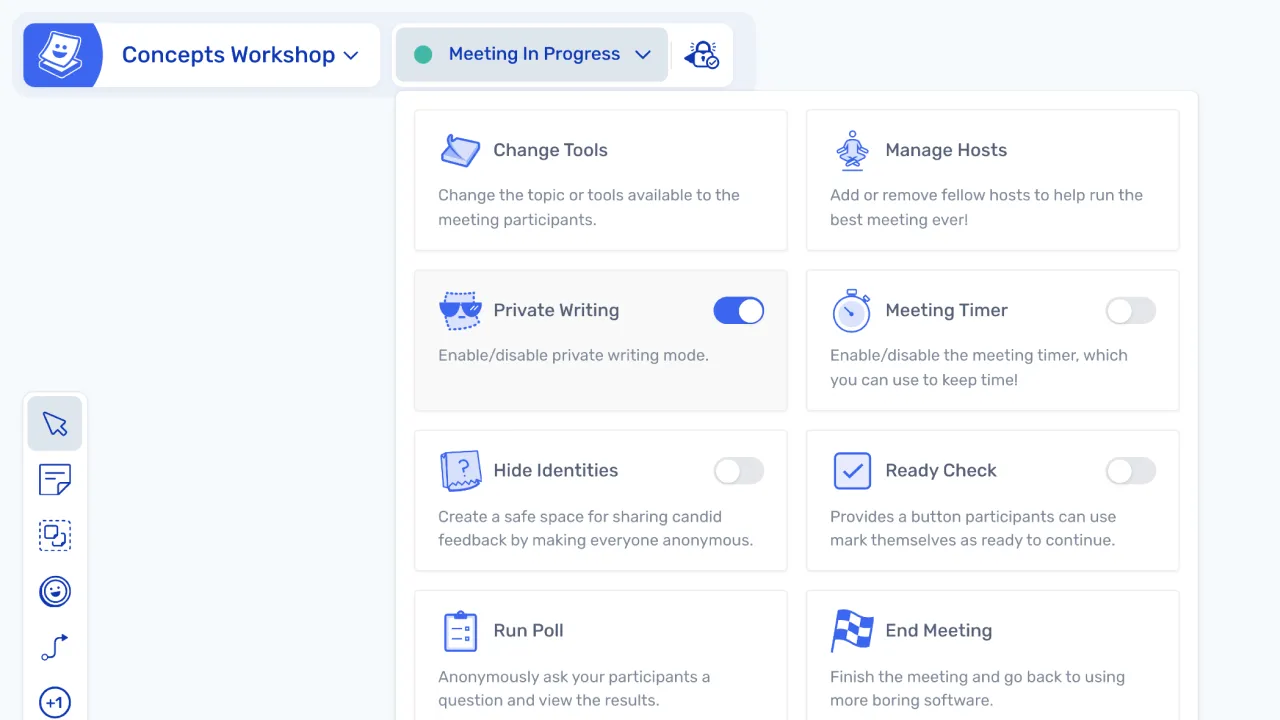
One of Spreo’s main features is Meeting Mode, which gives the facilitator a dedicated set of controls for running the session.
When you start a meeting, you become the Host, and the board switches to a simplified interface focused on participation.
You can then use features such as:
- Private Writing: Participants can write their ideas without anyone else seeing them, including the Host. Each person decides when to reveal their own notes, although the Host can force a reveal when it’s time to move on.
- Hide Identities: Allows people to contribute anonymously. Anything written or voted on while it’s enabled can never be traced back to its author.
- Meeting Timer: Helps keep activities within their allocated time.
- Ready Check: Lets you check whether everyone is ready to move on.
- Run Poll: Collects responses from participants during the session.
- Everyone To Me: Brings everyone to your location on the board.
There are also Voting Rounds for prioritising ideas and Topics for grouping related feedback.
And if you’re dealing with a large number of sticky notes, Spreo’s AI-Driven Topic Grouping can help organise them into themes.
For workshops involving several activities, Activity Frames let you prepare everything on one board while keeping upcoming exercises hidden.
When it’s time to move on, you reveal the next activity and use Focus Everyone to bring the team to it.
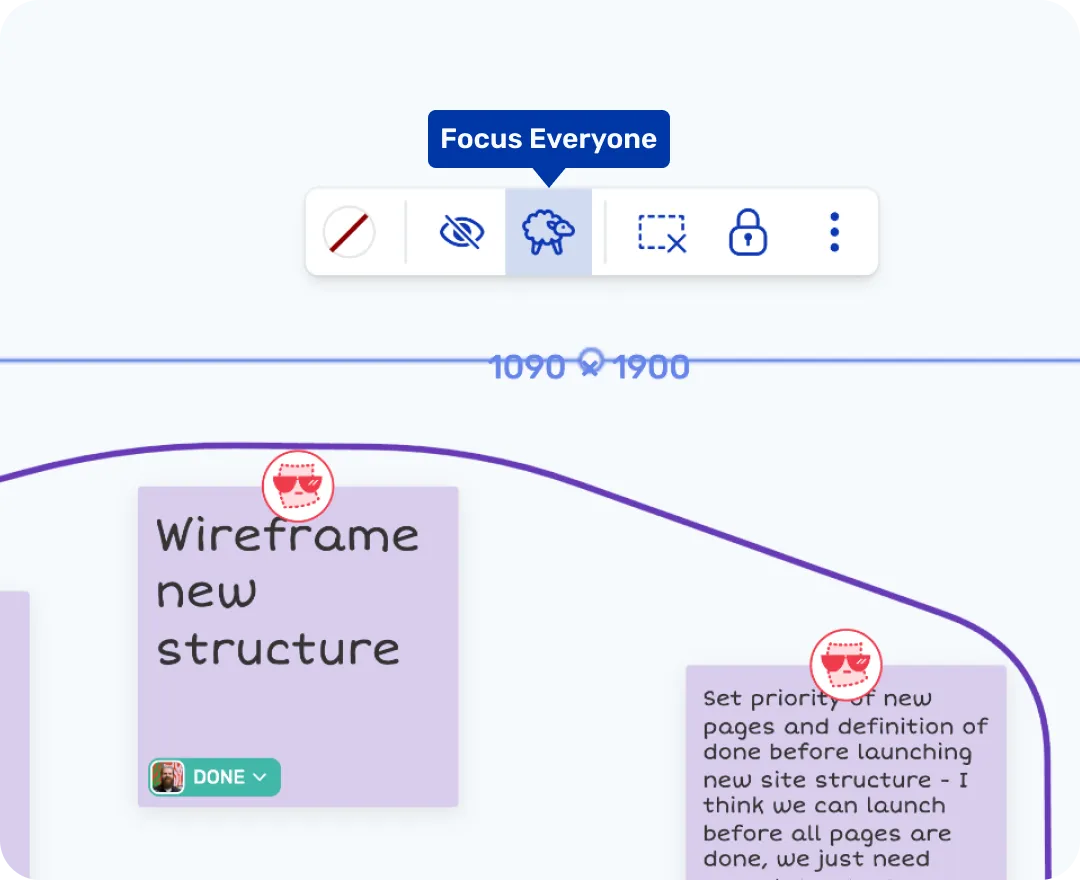
This means you can control how the session unfolds without forcing everyone through a predefined sequence of steps.
Templates for brainstorming, planning, and workshops
Spreo includes more than 150 ready-made, hand-illustrated templates.
These cover a range of remote collaboration activities, including:
- Retrospectives and team health checks.
- Sprint planning, estimation, and backlog refinement.
- Brainstorming and idea prioritisation.
- Workshops, kickoffs, OKR planning, and Lean Coffee.
- Product roadmaps and planning activities.
- Icebreakers and team activities.
And the illustrations aren’t just there for decoration.
Take the Sailboat retrospective, for example.
Instead of presenting participants with four ordinary columns, the template uses an illustrated sailboat scene. The different parts of the scene represent the areas the team needs to discuss.
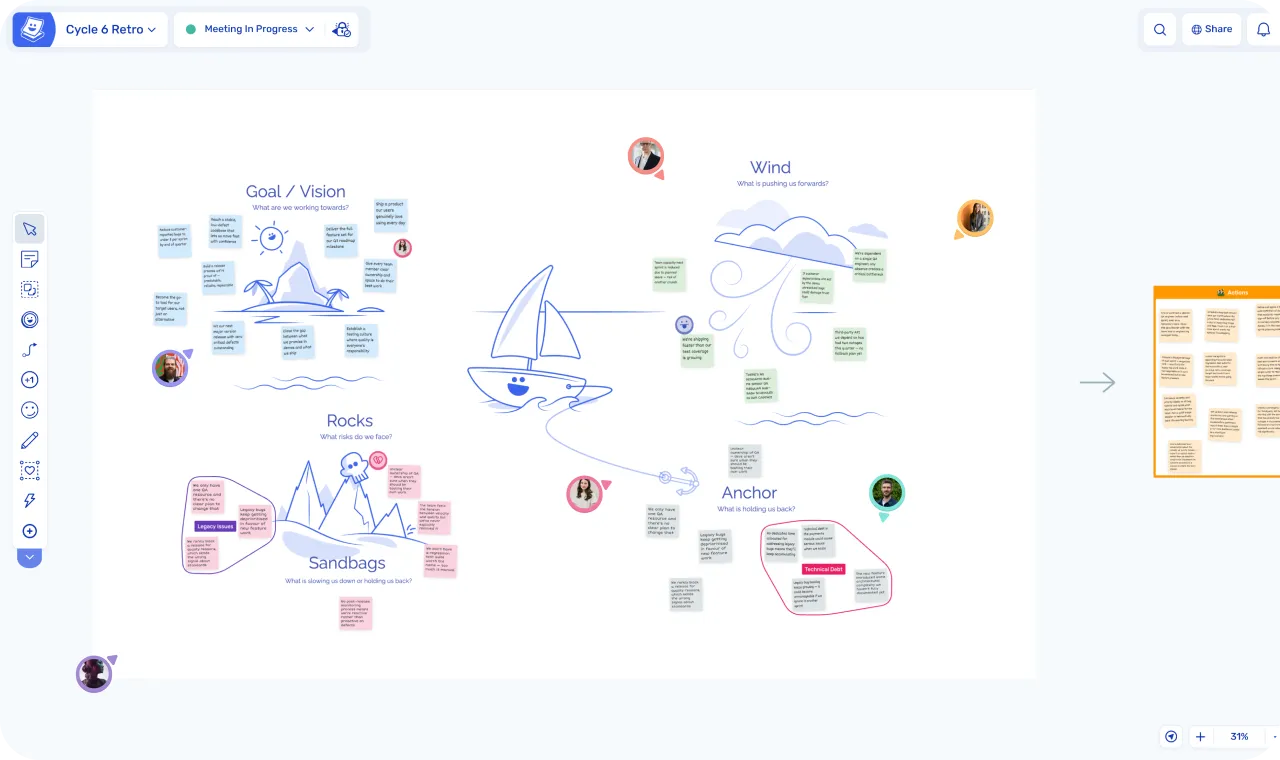
Other templates take a similarly visual approach, giving participants a clear way to understand and engage with the activity.
Of course, you can also create your own boards and save them as reusable templates.
That can be particularly useful for meetings you run regularly, where you don’t want to rebuild the same activities every time.
Bringing a little more energy into remote collaboration
Here’s another thing that makes Spreo different.
The software includes a collection of playful features designed to make remote meetings feel a little less like, well, another remote meeting.
For example, participants can wear virtual hats, throw hats at one another, launch confetti, or leave emoji stamps on sticky notes.
There are also interactive gadgets, including:
- Jukebox: A music player for the board.
- Spinner: A random selection gadget.
- Buzzer: An interactive buzzer.
- Voter: A gadget for voting activities.
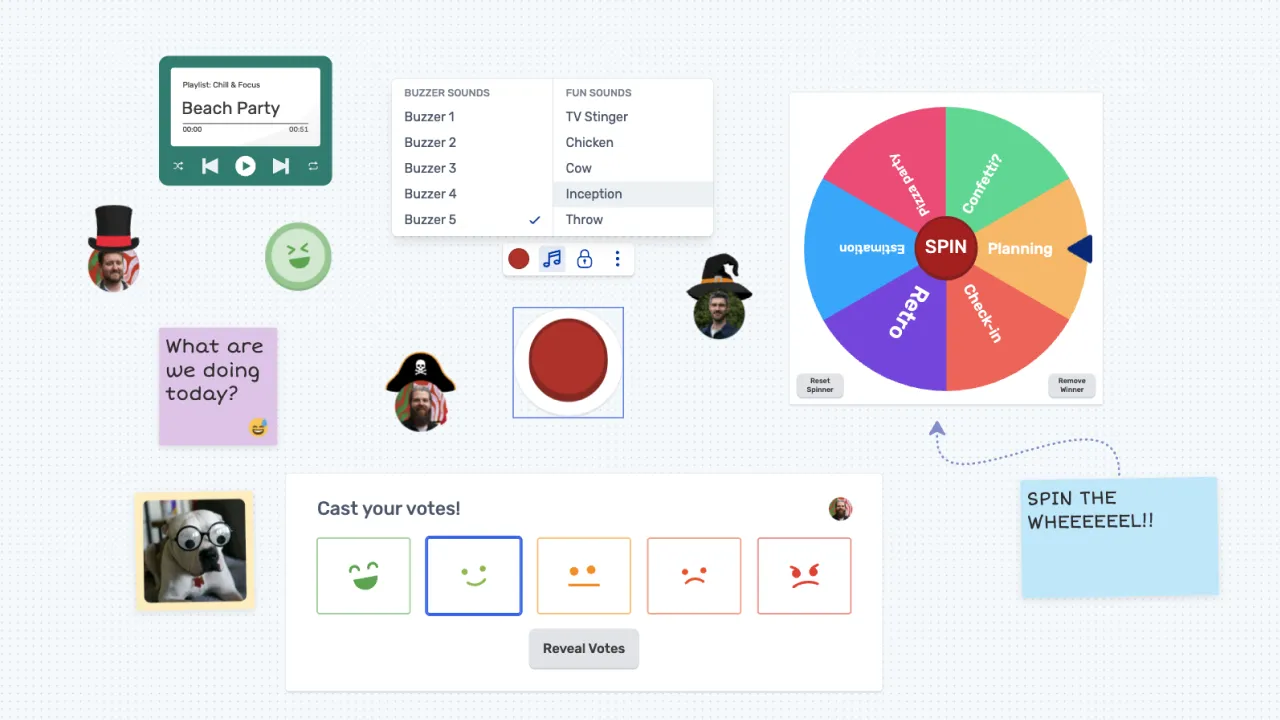
Now, none of these features is essential to brainstorming or planning, of course.
But they’re part of Spreo’s approach to making collaboration more engaging, especially when teams run the same kinds of meetings every sprint.
Instead of relying entirely on the facilitator to create some energy, the board itself gives participants more ways to interact.
Keeping collaboration going after the meeting
Although Spreo is primarily designed for live sessions, the board doesn’t disappear when everyone leaves.
Participants can continue discussing ideas through comments and @mentions on sticky notes and cards.
There are also features for turning meeting outcomes into actual work.
For example, you can create an action item, assign an owner, set an optional due date, and track its status.
Spreo keeps those actions in an Action Items dashboard and sends daily or weekly reminder emails.
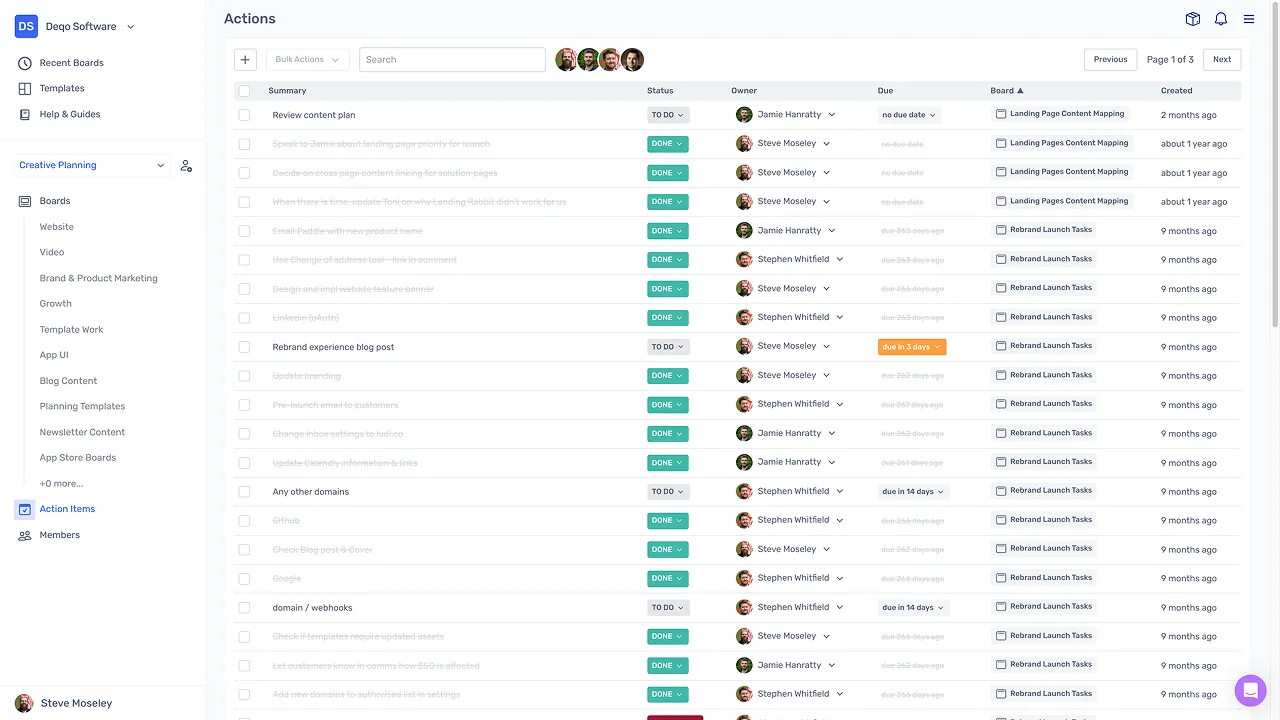
And when the next meeting comes around, you can bring outstanding actions onto the new board using Insert > Action Items.
This means the team can revisit previous decisions without manually copying notes between sessions.
There are integrations with Jira, Linear, and Azure DevOps, too.
Spreo also supports CSV imports and exports to PDF, CSV, HTML, Markdown, and JSON.
AI capabilities
Spreo offers two approaches to working with AI.
First, there’s AI-Driven Topic Grouping, which helps organise sticky notes into related topics during a session.
Second, Spreo has an MCP server that lets you connect an AI assistant you already use, such as Claude or ChatGPT.
You can then ask the assistant to create boards, edit existing ones, read their contents, or summarise the team’s work.
For example, you could describe the workshop you want to run and have your assistant build the initial board.
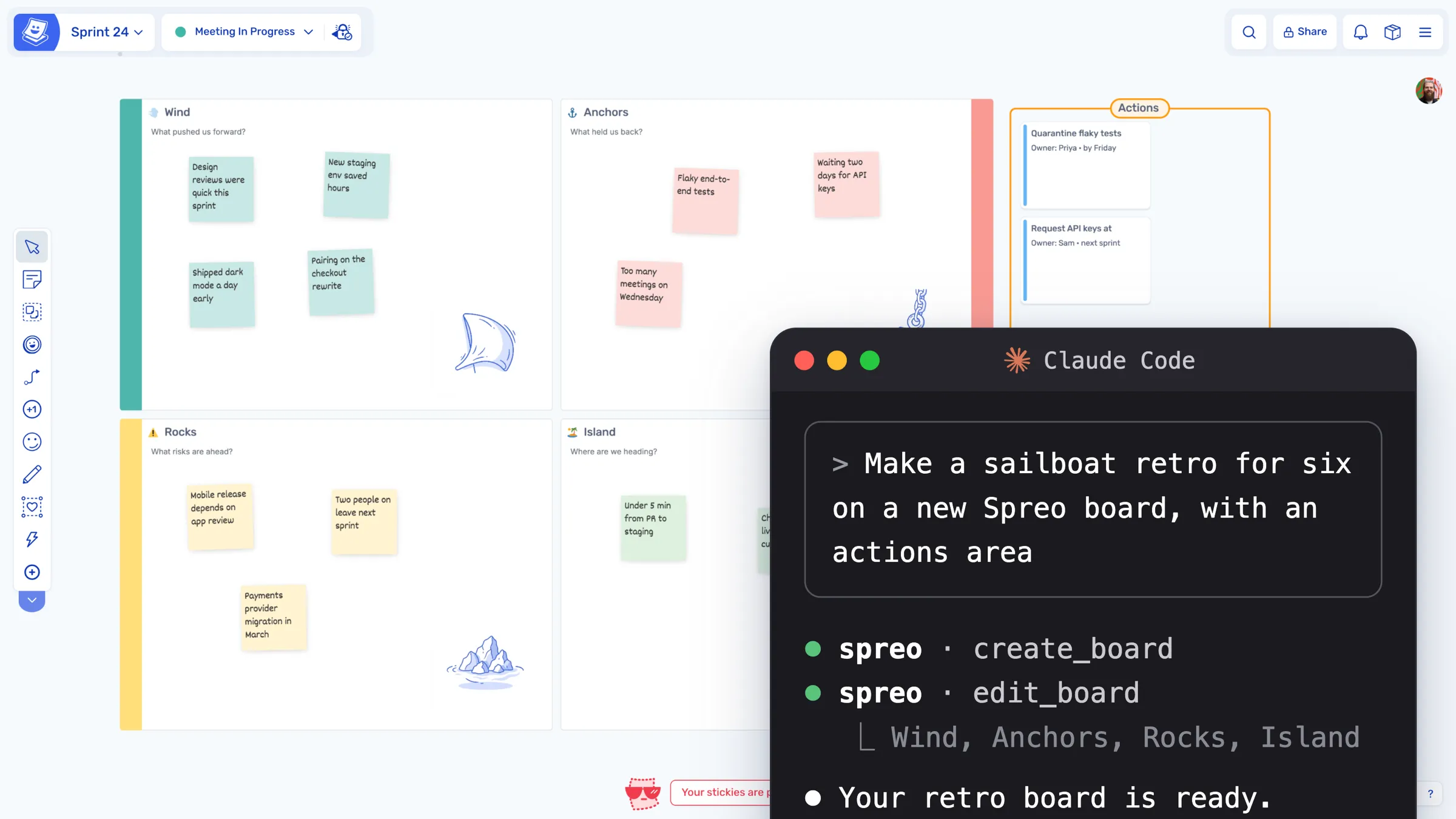
The Account Owner controls whether AI is enabled and chooses the provider.
Limitations to consider
There are a few things worth knowing before choosing Spreo.
- Primarily designed for live sessions: Boards remain available between meetings, but Spreo doesn’t support asynchronous meeting rounds or deadlines. If your team needs to complete meeting stages across different time zones, Parabol offers more functionality.
- No built-in video conferencing: Spreo runs alongside your video call. It doesn’t have Zoom or Google Meet apps, and its Microsoft Teams app is still in development.
- Facilitator-led meetings: Spreo doesn’t automatically guide teams through fixed meeting phases. The facilitator controls the sequence of activities.
- Guest access on secure boards requires a higher plan: Team-plan Visitors can join Open boards, but inviting guests to secure boards requires Consultant or Enterprise.
- Every facilitator needs an Editor licence: Only Editors can host meetings, so teams that rotate the facilitator role need more than one Editor.
- Limited free version: Spreo Lite supports up to three participants, with boards stored in the user’s browser.
Spreo pricing
Spreo offers a free Lite version alongside paid plans for teams, consultants, and larger organisations.
| Plan | Pricing | Main details |
|---|---|---|
| Lite | Free | Up to 3 people, no sign-in required. Boards stored in the browser. |
| Team: Editor | $13/user/month annually, or $16 monthly | Create boards and host meetings. |
| Team: Collaborator | $3/user/month annually, or $4 monthly | Regular team members who can be assigned actions. |
| Team: Visitor | Free | Unlimited participants joining Open boards without an account. |
| Consultant | $25/seat/month | Designed for client sessions, with guests joining at no extra cost. |
| Enterprise | Custom pricing | For 100+ users, with secure guest access, additional controls, and hosting options. |
For example, a team of eight with one Editor and seven Collaborators would pay $34 per month with annual billing, or $44 with monthly billing.
Alternatively, one Editor could host a session with seven free Visitors on an Open board for $13 per month with annual billing, although Visitors can’t be assigned action items.
There’s also a 15-day free trial of the Team plan, with no credit card required.
Overall, Spreo is best suited to agile teams that regularly run remote meetings, brainstorming sessions, planning activities, and workshops, and want a shared whiteboard that makes those sessions easier to facilitate and more enjoyable to attend.
Its main strengths are straightforward participation, built-in facilitation controls, illustrated templates, playful interactions, and the ability to follow up on meeting outcomes without leaving the board.
Miro: best for company-wide visual collaboration
Miro is a general-purpose online whiteboard designed for visual collaboration across different teams and departments.
Unlike tools that focus on particular meetings or activities, Miro aims to provide a shared workspace for everything from brainstorming and planning to workshops, agile meetings, and decision-making.
And there’s certainly no shortage of features to support those activities.
For starters, Miro offers more than 7,000 templates, including dedicated collections for brainstorming, workshops, retrospectives, and planning.
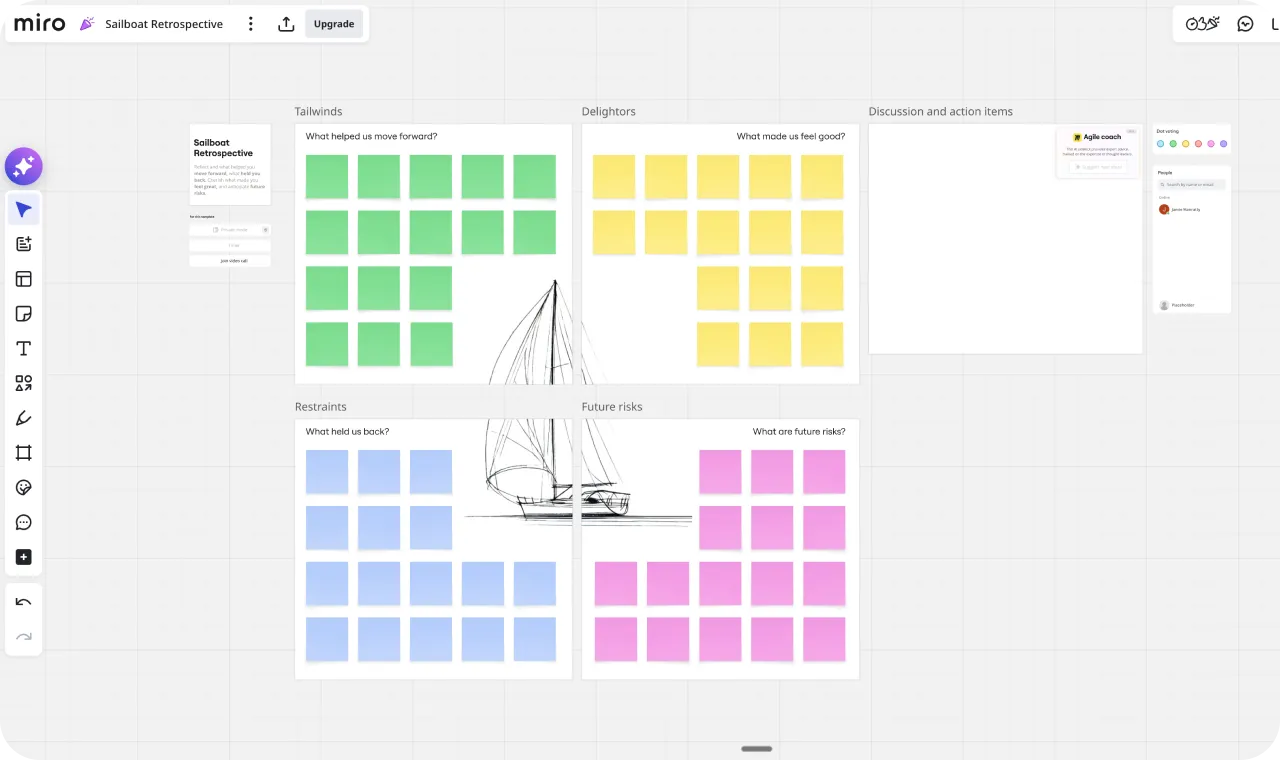
It also includes meeting facilitation tools such as timers, private writing, voting, and controls for bringing everyone to the same part of the board.
On the Business plan, there’s even more functionality, including polls, quizzes, word clouds, and breakout frames, although the latter are still in beta.
But one of Miro’s main strengths for distributed teams is its support for both live and asynchronous collaboration.
People can contribute to the same board during a meeting, then continue working through comments, mentions, and voting sessions that remain open for hours or days.
There’s also Talktrack, which lets you record walkthroughs of a board for colleagues to watch in their own time.
And because remote collaboration usually happens alongside video calls, Miro offers applications for Zoom, Microsoft Teams, Webex, and Google Meet.
When it comes to following up on decisions, you can turn sticky notes into Jira issues, while Business adds integrations with Azure DevOps and Linear.
Miro also offers AI features for organising and summarising information.
There are a few limitations worth knowing about, though.
- Important facilitation features require paid plans: Timers, voting sessions, and private mode need Starter, while polls, quizzes, and breakout frames require Business.
- Guest permissions vary: Visitors can edit through public links from Starter, but editing guests on secure boards require Business.
- Limited action follow-up: Miro doesn’t document a way to carry unfinished actions into the next meeting, and comments and voting results can’t be exported.
- Performance on large boards: Miro acknowledges that complex boards with many elements or participants can become slower.
Pricing: Miro offers a free plan with three editable boards. Starter costs $8 per member per month billed annually (or $10 monthly), while Business costs $20 per member billed annually (or $25 monthly). Enterprise pricing is custom.
Overall, Miro is particularly suited to organisations that want one visual collaboration platform for multiple departments, with support for both live sessions and asynchronous work.
Mural: best for method-led facilitated workshops
Mural is an online visual collaboration platform with a particular focus on facilitated workshops.
Like other whiteboards, it lets teams work together using sticky notes, drawings, diagrams, and templates.
But where Mural stands out is in its approach to facilitation.
Its Facilitation Superpowers include timers, anonymous voting, private mode, facilitator controls, and the ability to bring participants to a particular part of the board.
And importantly, these features are available on every plan, including Free.
There’s also Mural’s connection with the LUMA Institute.
Mural includes 36 LUMA human-centred design methods, each with its own matching template. So rather than inventing a workshop structure from scratch, you can start with an established method and guide participants through it.
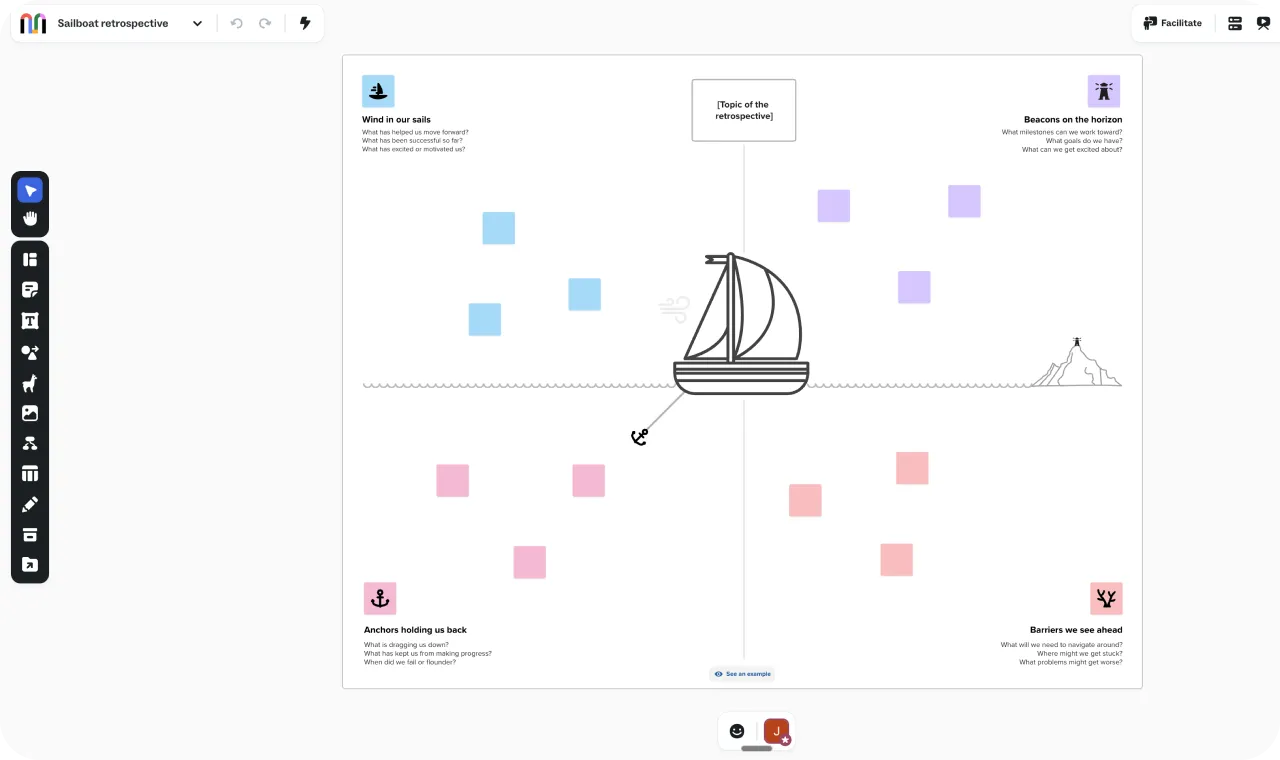
The software is also designed to work alongside video conferencing.
It has applications for Zoom, Microsoft Teams, Webex, and Google Meet, allowing teams to bring the shared board into their calls.
For collaboration between meetings, Mural supports comments, mentions, and notifications. Paid plans also include Mural AI, which can generate ideas, group sticky notes, summarise discussions, and translate text.
There’s an official MCP server, too, currently in public preview, that allows you to connect your own AI assistant.
When it comes to capturing outcomes, you can export boards and voting results or turn sticky notes into tasks in Jira, Asana, Linear, or GitHub.
There are some limitations, though.
- Guest access depends on the plan: Free-plan Visitors can only view boards. Editing requires Team+, while regular external guests require Business.
- No documented built-in action tracker: Mural supports transferring actions to other applications but doesn’t describe its own action dashboard with owners and deadlines.
- AI requires a paid plan: Mural AI isn’t included in Free, although the MCP server preview is available.
Pricing: Mural offers a free plan with three editable murals at a time. Team+ costs $9.99 per member per month billed annually (or $12 monthly), while Business costs $17.99 per member/month, billed annually only. Enterprise pricing is custom.
Overall, Mural is a strong option for facilitators who regularly run structured remote workshops and want access to established methods and meeting controls without having to build everything themselves.
FigJam: best for teams already using Figma
FigJam is Figma’s online whiteboard, designed for brainstorming, planning, workshops, diagramming, and other collaborative activities.
And its biggest advantage is probably the fact that it comes with Figma.
If your team already uses Figma for design work, FigJam is available through the Full, Dev, and Collab seats you already have.
This means brainstorming and planning can happen alongside the team’s design work without introducing another application.
Of course, FigJam has the whiteboard functionality you’d expect.
Participants can add sticky notes, create diagrams, organise ideas, and use templates for activities such as retrospectives, sprint planning, roadmaps, and brainstorming.
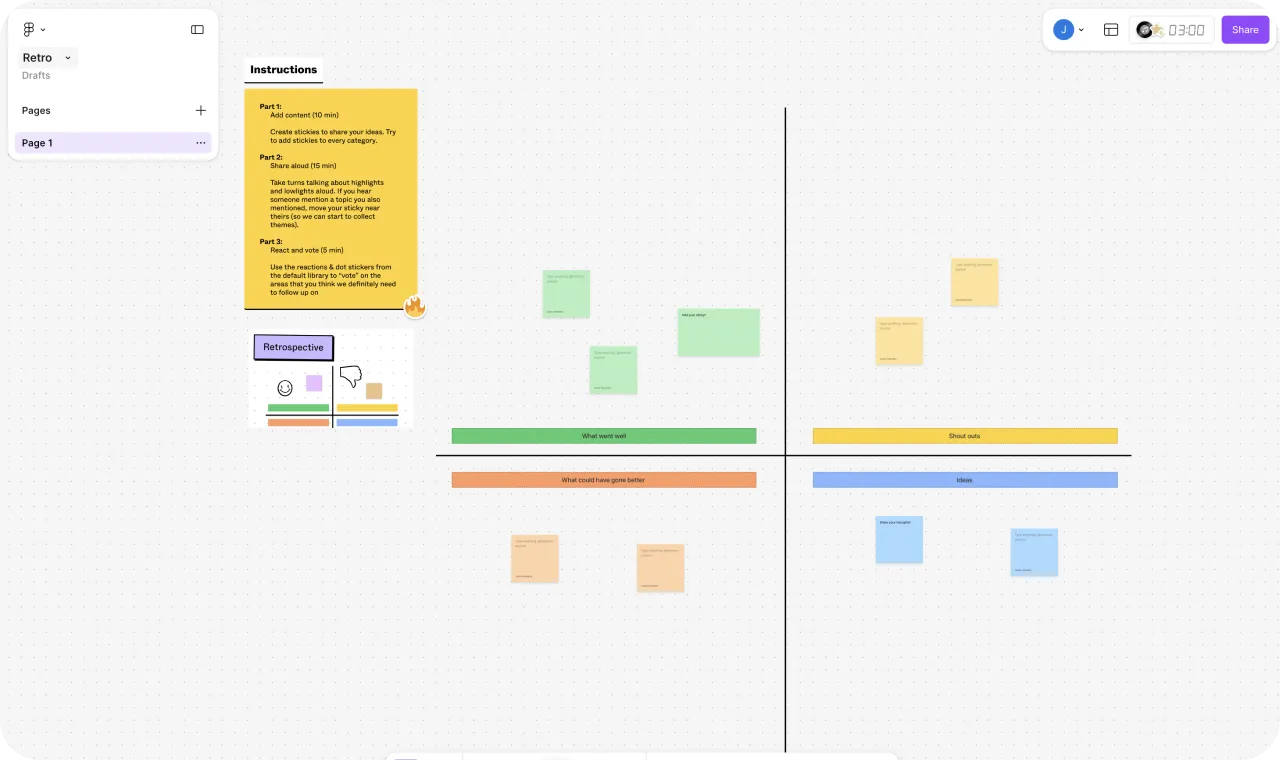
There are also features designed to make remote sessions more interactive.
These include a timer with music, live audio, voting, hidden sections, and Spotlight, which lets participants follow someone’s view of the board.
FigJam also works inside Zoom, Microsoft Teams, and Google Meet.
And on paid plans, Open Sessions allow people without Figma accounts to join and edit a board for 24 hours.
For asynchronous collaboration, FigJam supports comments, mentions, and email notifications.
There’s also AI functionality for generating diagrams, grouping sticky notes, and summarising information, along with an MCP server that lets AI assistants read boards and create content.
When it comes to action items, FigJam offers a Jira widget that can turn sticky notes into Jira issues.
However, there are some limitations.
- No dedicated facilitator role: Anyone in the file can control the timer or end a voting session.
- No documented private writing mode: Sticky notes can display the author’s name, although participants can switch that off.
- Temporary guest sessions: Open Sessions last 24 hours, after which another session must be started.
- Limited follow-up: FigJam doesn’t provide a documented action tracker within the application.
- Restricted free plan: Voting, live audio, AI, and Open Sessions require a paid subscription.
Pricing: FigJam is included with Figma plans. The free Starter plan supports three FigJam files per team folder. On Professional, Collab seats cost $3 per member/month billed annually (or $5 monthly), with voting, AI, audio, and Open Sessions included.
Overall, FigJam makes the most sense for product and design teams already using Figma, particularly when they want to keep brainstorming and planning close to their design work.
Lucidspark: best for teams already using Lucidchart
Lucidspark is an online whiteboard from Lucid Software, the company behind Lucidchart.
It’s designed for brainstorming, planning, workshops, and other visual collaboration activities.
But there’s one particular capability that makes it different from many other whiteboards.
You can take ideas developed in Lucidspark and turn them into structured diagrams in Lucidchart without recreating them.
For example, a team might start by collecting ideas on sticky notes during a brainstorming session, organise those ideas, and then move the results into a process map or flowchart.
You can export the board to Lucidchart or open it in Lucidchart on the same canvas.
Lucidspark also offers hundreds of templates, including formats for retrospectives, sprint planning, workshops, and prioritisation.
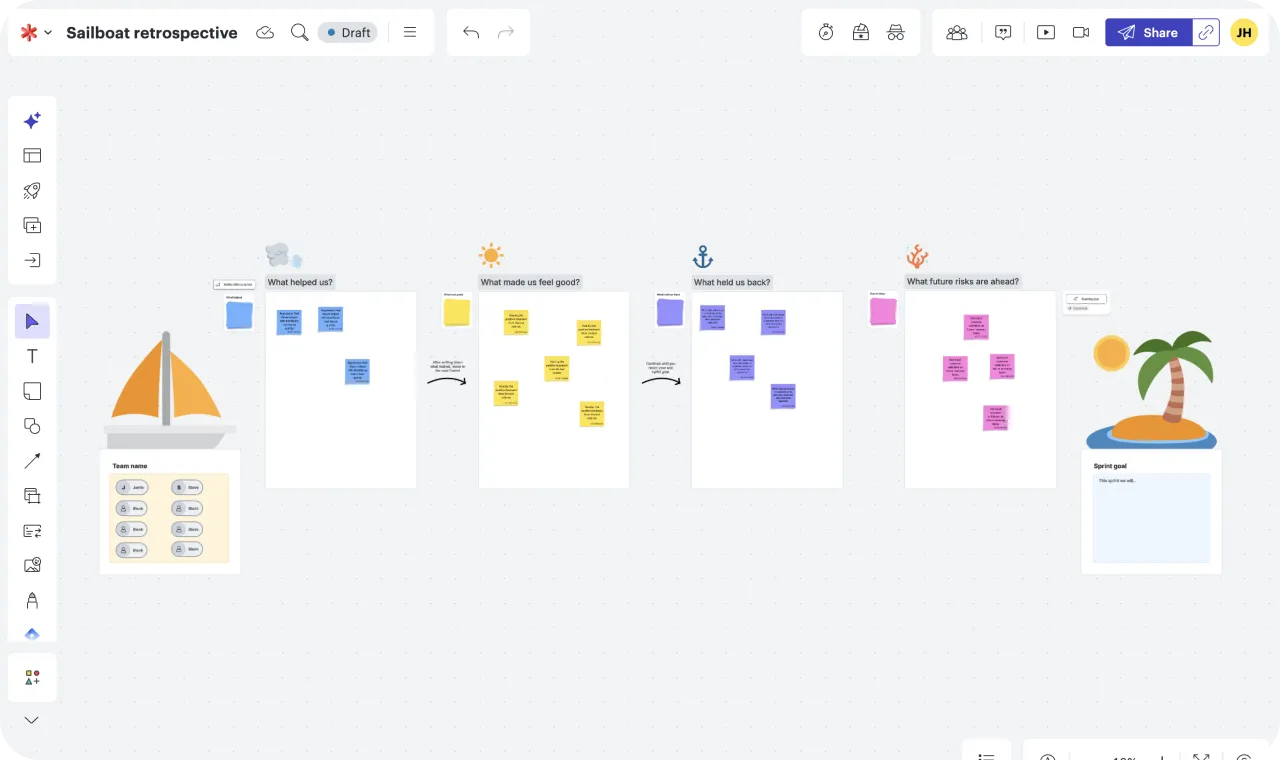
For live collaboration, the Team plan includes timers, voting sessions, private voting, and facilitator controls.
There are also comments, mentions, notifications, and AI-generated summaries for work that continues between meetings.
Lucidspark integrates with Zoom, Microsoft Teams, Webex, Google Meet, and Slack.
And on Team and Enterprise plans, guests can join Lucidspark boards through a link without creating an account.
The software also includes Lucid AI and an MCP server, allowing teams to work with AI-generated ideas, summaries, and diagrams.
There are limitations worth considering, though.
- Facilitation features depend on the plan: Timers, voting sessions, and guest access require Team.
- Private writing requires Enterprise: Only Enterprise users can start private mode, although other participants can take part.
- Development-tool integrations require Enterprise: Jira, Azure DevOps, and Asana tracker integrations aren’t included in Team.
- Some workflows involve two applications: Moving between Lucidspark and Lucidchart may feel less straightforward than working entirely within one tool.
Pricing: Lucidspark offers a free plan with three editable boards. Individual costs $9/month billed annually, while Team costs $10 per user/month if billed annually (or $15 monthly). A combined Lucidspark and Lucidchart Team subscription costs $15 per user/month annually. Enterprise pricing is custom.
Overall, Lucidspark is best suited to teams already using Lucidchart that want to turn collaborative brainstorming into diagrams and process maps without starting over.
Conceptboard: best for sovereign, German-hosted whiteboarding
Conceptboard is an online whiteboard developed in Germany, with a particular emphasis on data sovereignty and hosting.
And that’s an important distinction.
While most tools in this guide focus primarily on collaboration features, Conceptboard also targets organisations with specific requirements around where their information is stored and processed.
Every plan is hosted in Germany, with AWS Frankfurt as the standard hosting environment.
Higher-tier options include German-owned cloud providers, dedicated servers, and on-premises deployment.
Conceptboard also publishes ISO 27001, 27017, and 27018 certification information.
Of course, it isn’t just a hosting solution.
The software includes a shared whiteboard with more than 150 templates for activities such as brainstorming, planning, workshops, retrospectives, and reviews.
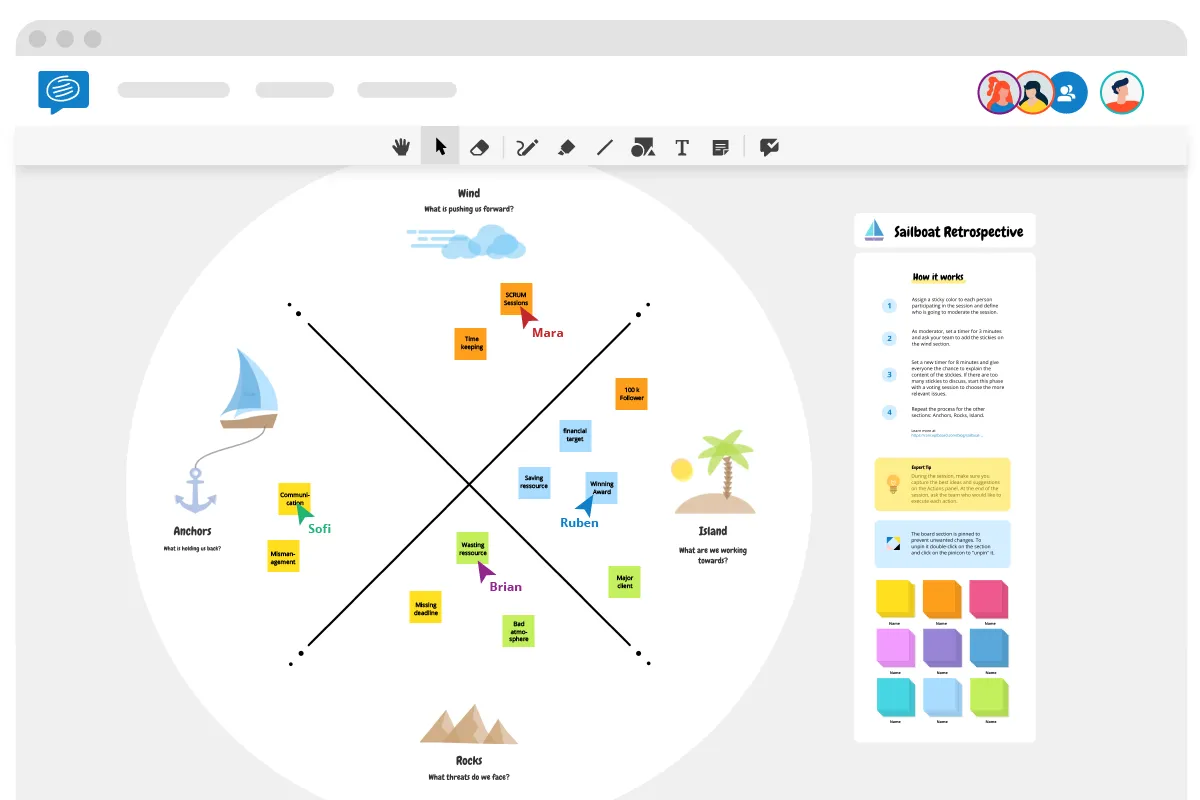
On paid plans, facilitators can use timers, voting, moderator mode, hidden sections, and an incognito mode for anonymous voting.
There’s also built-in video conferencing, along with comments, mentions, notifications, and an activity feed for continuing work between sessions.
Another useful feature is the ability to turn cards into tasks with owners and deadlines, with two-way synchronisation to Jira and Azure DevOps on paid plans.
And joining a session is relatively straightforward.
Guests can use a board link and their name to enter without creating an account. On paid plans, they can also edit the board.
There are several limitations to consider, though.
- Limited free plan: Free has three active boards and a 100-object limit per board, with no timer, voting, or moderation according to the pricing page.
- German-owned hosting costs extra: IONOS and StackIT options require Advanced or higher, with additional fees.
- Basic facilitation functionality: No private writing, polls, or breakout boards are documented.
- No live AI features: Conceptboard has previewed AI functionality, but none was available as of 3 November 2026.
- Performance concerns: Some reviewers report slower loading on large or busy boards.
Pricing: Conceptboard offers a free plan. Starter costs €5 per user/month, billed monthly or annually. Advanced starts at €10 per user/month with a minimum of 10 users and a 12-month contract. Corporate & Government starts at €14 per user/month with a minimum of 100 users and a 24-month contract. Prices exclude VAT.
Overall, Conceptboard is particularly relevant to organisations that need visual collaboration software hosted in Germany, especially when data protection and procurement requirements influence which tools they can use.
Creately: best for collaborative diagrams and flowcharts
Creately is a visual collaboration and diagramming platform designed for teams that need to work together on structured diagrams.
Although it also supports brainstorming, planning, and workshops, diagramming is where its main strengths lie.
For starters, Creately offers more than 70 diagram types, with the relevant shapes and connectors already prepared.
These include flowcharts, mind maps, UML diagrams, process maps, and other structured visualisations.
Multiple people can work on the same canvas, with live cursors and comments helping everyone follow what’s happening.
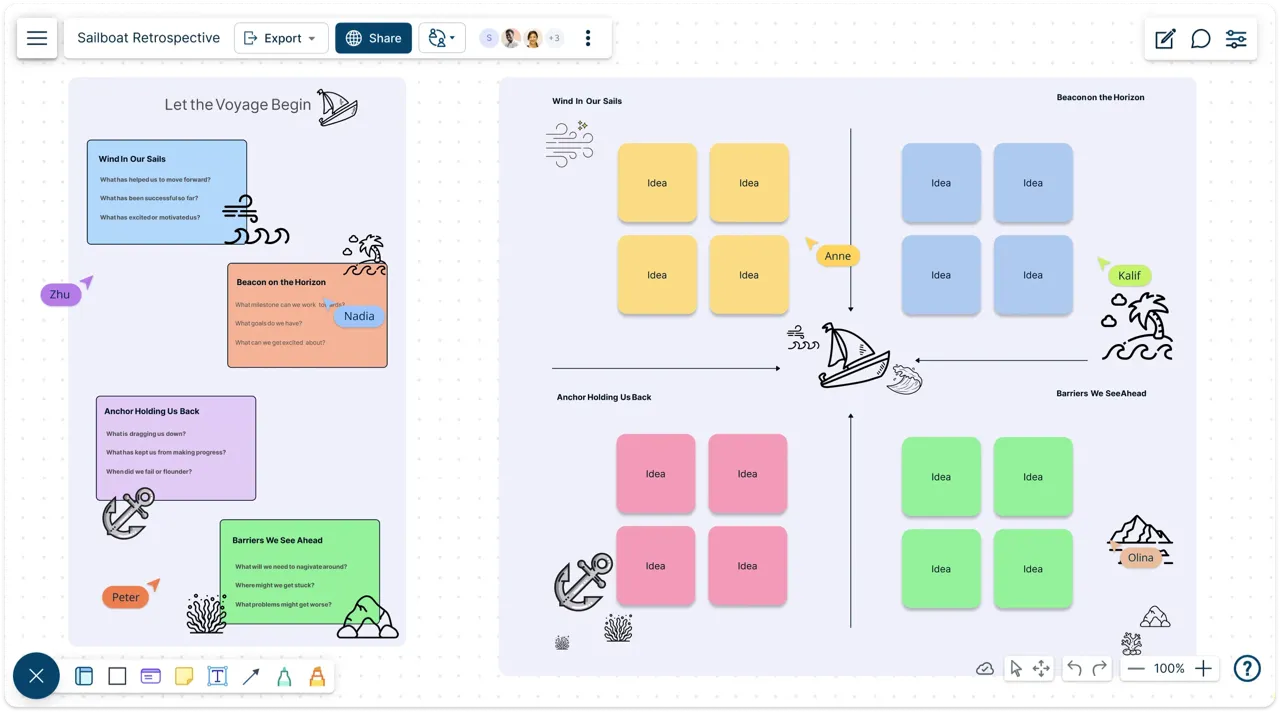
And there’s more to these diagrams than just their appearance.
Creately allows shapes to hold data and tasks, turning visual information into something teams can continue working with after the session.
For example, you can assign tasks and deadlines, or connect information with Jira, Azure DevOps, and GitHub through two-way integrations.
There are also collaboration features for running meetings.
Creately supports anonymous or public voting, with configurable vote limits and sessions that can remain open for minutes, hours, or days.
Presentation Mode and Spotlight let teams present diagrams and focus participants’ attention on particular parts of the board.
For asynchronous work, there are threaded comments, mentions, Slack notifications, and version history.
Creately also offers AI functionality for generating diagrams, grouping ideas, and summarising information.
However, there are limitations.
- Editing requires an account: People can view a publicly shared diagram without signing in, but contributors need Creately accounts.
- Fewer dedicated facilitation tools: No standalone meeting timer or private writing mode is documented.
- Restricted free plan: Each diagram is limited to 45 shapes, with no image or PDF export according to the pricing page.
- Unclear plan boundaries: Creately’s pricing and help documentation don’t consistently explain which plans include certain features.
- No documented MCP server: Creately lists connectors for AI assistants as planned rather than available.
Pricing: Creately offers a free plan. Pro costs $5 per editor/month billed annually (or $8 monthly), while Business costs $89 per organisation/month billed annually (or $149 monthly). Enterprise pricing is custom.
Overall, Creately is best suited to teams that regularly create flowcharts, process maps, and other structured diagrams together, particularly when those diagrams need to connect with project data and tasks.
Confluence Whiteboards: best for teams already on Confluence
Confluence Whiteboards is the visual collaboration functionality built into Atlassian’s Confluence Cloud.
And its biggest advantage is fairly obvious.
If your team already uses Confluence, you don’t need another application to start working together on a shared whiteboard.
The boards live alongside the team’s existing Confluence pages and can be used for brainstorming, planning, retrospectives, and other collaborative activities.
There’s also a particularly close connection with Jira.
You can turn sticky notes into Jira work items directly from the board, import existing Jira issues, and use the whiteboard to organise work visually.
On higher plans, smart sections and connectors make those Jira workflows more extensive.
For meetings, Confluence Whiteboards includes timers, private mode, voting, and controls for following someone’s view of the canvas.
There are also templates for brainstorming, Lean Coffee, sprint planning, PI planning, and retrospectives.
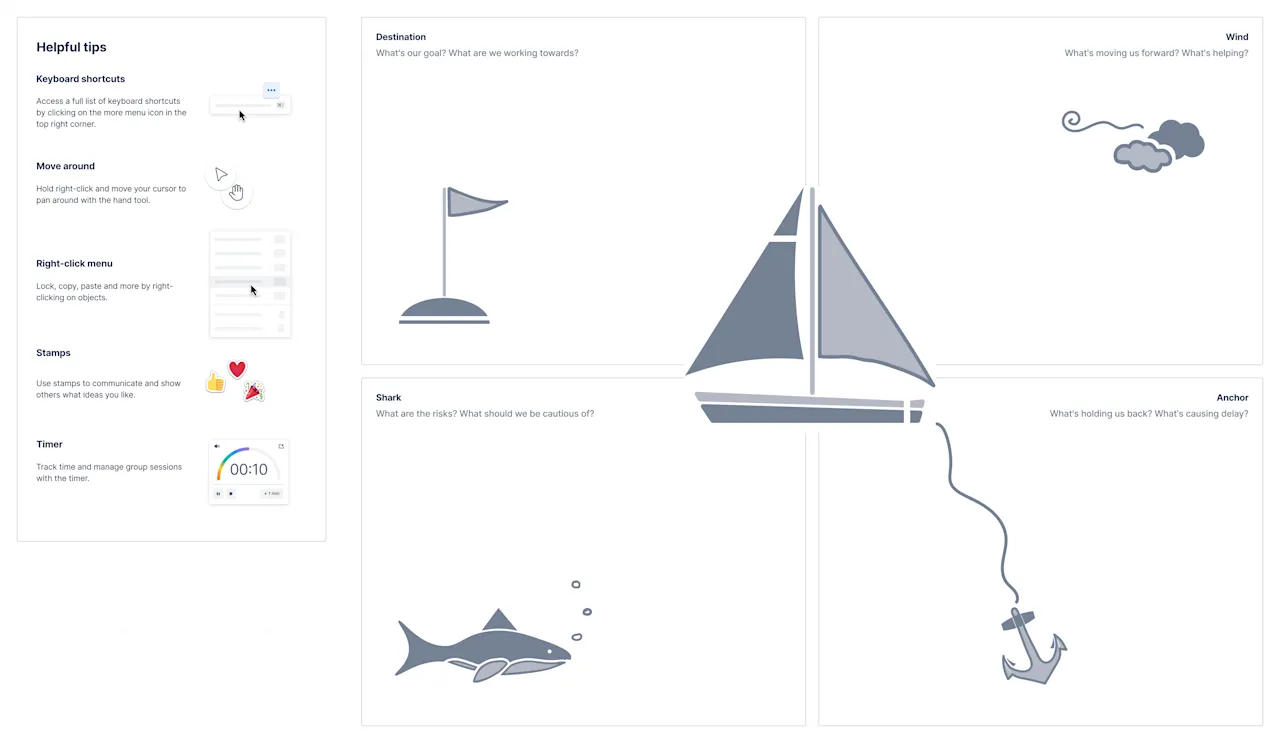
And when the meeting ends, the board remains available for further contributions.
People can leave comments, add stamps, and share Loom recordings, while version history helps track changes.
Confluence Whiteboards also integrates with Rovo, Atlassian’s AI, which can summarise boards, identify action items, and create pages from the discussion.
An MCP server allows connected AI assistants to read, create, and update whiteboards, too.
There are some limitations, though.
- No dedicated facilitator controls: Anyone on the board can start or end voting sessions and end private mode.
- Limited external collaboration on Free: Public links and guest access require Standard or higher.
- No whiteboard inside video conferencing apps: The documentation doesn’t describe a Zoom or Google Meet whiteboard app, and Microsoft Teams support remains an open feature request.
- Cloud only: Whiteboards aren’t available in Confluence Data Center.
- Free-plan board limits: Each user can have only three active whiteboards.
Pricing: Confluence Whiteboards is included with Confluence Cloud at no additional cost. Confluence Free supports up to 10 users. Standard costs $7.15 per user/month billed monthly, or $720 annually for up to 10 users. Premium costs $14.10 per user/month billed monthly, or $1,400 annually for up to 10 users. Enterprise pricing is custom.
Overall, Confluence Whiteboards makes the most sense for teams already using Confluence and Jira that want visual collaboration alongside their existing documentation and project workflows, without introducing another application.
Parabol: best for guided agile meetings
Parabol is a collaboration tool designed specifically for agile team meetings, including retrospectives, Sprint Poker, standups, check-ins, and team health checks.
And there’s one important difference between Parabol and the other tools in this guide.
Parabol isn’t an online whiteboard.
Instead of giving you a shared canvas where you can freely arrange activities, it guides the team through a predefined sequence of steps.
Take a retrospective, for example.
Parabol moves participants through four stages: Reflect, Group, Vote, and Discuss.
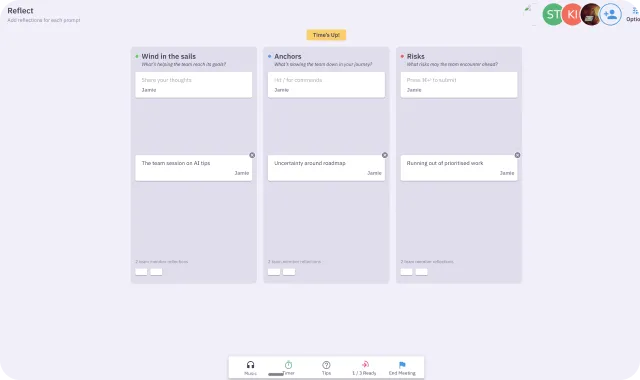
Everyone starts by writing feedback privately, with contributions anonymous by default. Then the team groups related ideas, votes on the most important topics, and discusses them.
The facilitator controls when everyone moves to the next stage.
But perhaps Parabol’s biggest advantage for distributed teams is its support for asynchronous collaboration.
You can assign a deadline to any retrospective stage, allowing participants to contribute in their own time rather than requiring everyone to attend the same meeting.
There are asynchronous standups, too, where team members submit written updates. And Sprint Poker voting can remain open for participants to estimate work at different times.
Parabol also integrates with Jira, GitHub, GitLab, Linear, and Azure DevOps.
For example, Sprint Poker can import issues from these platforms and write estimates back to them. Retrospective discussions can also generate tasks with assigned owners.
And when a retrospective ends, Parabol emails a summary to the team, including anyone who couldn’t attend. Open tasks can be reviewed during future retrospectives.
There are AI features, too, including meeting summaries, suggested feedback groups, discussion prompts, and icebreakers.
However, there are some limitations worth knowing about.
- No shared whiteboard: You can’t freely arrange sticky notes, draw diagrams, or create visual workshop activities. Brainstorming takes place within a retrospective-style process.
- Limited meeting formats: Parabol supports its predefined agile meeting types, but doesn’t offer dedicated workshop formats or sprint planning meetings beyond Sprint Poker.
- Everyone needs an account: There’s no guest role, so even someone joining a single session must sign in and become part of a team.
- Asynchronous meetings still need facilitation: Deadlines don’t automatically advance the retrospective. The facilitator must move the team to the next stage.
- Free-plan limitations: Starter supports up to two teams and 10 meetings per month, with only 30 days of meeting history. Team Health isn’t included.
Pricing: Parabol offers a free Starter plan with unlimited users across two teams and 10 meetings per month. Team costs $8 per active user/month, billed monthly, with unlimited meetings, teams, and history. Enterprise pricing is custom.
Overall, Parabol is best suited to distributed agile teams that want their retrospectives, estimation sessions, and standups to follow a structured process, particularly when participants need to contribute across different time zones.
Its main strengths are guided meeting stages, asynchronous participation, and integrations that help teams turn meeting outcomes into work.
Which visual collaboration tool should you choose?
Well, that depends on what you and your team actually need to do together.
Some tools focus on making live meetings and workshops easier to facilitate. Others work particularly well for brainstorming across different time zones, creating diagrams, or keeping visual collaboration within applications your team already uses.
And then there’s the question of participation. Can everyone join easily? Can they contribute without creating an account? What happens to the ideas and decisions after the meeting?
Here’s a quick comparison to help you narrow down your options.
| Your main need | Best option | Why choose it | Main trade-off |
|---|---|---|---|
| Engaging agile meetings, brainstorming, and workshops | Spreo | Easy account-free participation on Open boards, illustrated templates, playful features, and built-in facilitation controls. | Primarily designed for live sessions, without asynchronous meeting rounds. |
| Company-wide visual collaboration | Miro | A shared visual workspace for different departments, with live and asynchronous collaboration, extensive templates, and guest access. | Advanced facilitation features require Business, and there’s no documented way to carry actions into the next session. |
| Structured, method-led workshops | Mural | 36 LUMA methods with matching templates, plus timers, private mode, and anonymous voting on every plan. | No documented built-in action tracker; external participants can only view on Free. |
| Collaboration alongside Figma design work | FigJam | Included with Figma seats, with brainstorming, planning, and guest sessions available within the same environment. | No dedicated facilitator role or private writing mode. |
| Brainstorming that leads to diagrams | Lucidspark | Move ideas into Lucidchart without redrawing them, with meeting controls and guest access on Team. | Private mode, breakout boards, and development-tool integrations require Enterprise. |
| German-hosted visual collaboration | Conceptboard | German hosting on every plan, with additional sovereign hosting options and published ISO certifications. | No live AI features or MCP server; German-owned hosting costs extra. |
| Collaborative diagrams and flowcharts | Creately | More than 70 diagram types, real-time editing, and two-way integration with Jira, Azure DevOps, and GitHub. | No documented standalone meeting timer or private writing mode. |
| Guided agile meetings across time zones | Parabol | Structured retrospectives, estimation, and standups, with asynchronous phases and deadlines. | Not a whiteboard, and everyone needs an account. |
| Visual collaboration within Confluence | Confluence Whiteboards | Included with Confluence Cloud, with boards alongside team documentation and direct Jira integration. | No dedicated facilitator controls; guest access requires a paid plan. |
| Free facilitation tools for a whole team | Mural | Unlimited members and access to timers, anonymous voting, and private mode on Free. | Only three murals remain editable, and external Visitors can only view. |
For a closer look, see how Spreo compares with Miro, Mural, FigJam, Lucidspark, and Parabol.
One distinction I’d pay particular attention to is whether you need to collaborate live or asynchronously.
If most of your work happens during meetings, Spreo and Mural offer dedicated facilitation controls, while Miro provides a broader workspace for different activities.
If people need to contribute at different times, Miro offers recorded walkthroughs and voting sessions that can stay open for days. Parabol is particularly relevant to agile teams that want to run meeting stages asynchronously.
Then there’s the question of what happens afterwards.
Some tools, such as Spreo, keep track of action items between meetings. Others focus on transferring the outcomes into applications such as Jira, or keeping the work available on the original board.
Ultimately, the best visual collaboration tool isn’t necessarily the one with the longest feature list.
It’s the one that makes it easier for everyone to participate, helps you run the activities your team actually needs, and ensures that the work you do together doesn’t simply get forgotten when the meeting ends.
Frequently asked questions
What is a visual collaboration tool?
A visual collaboration tool is software that allows people to work together on ideas, plans, and decisions using a shared digital workspace.
Typically, this means an online whiteboard where participants can add sticky notes, draw diagrams, organise ideas, and collaborate in real time.
Many tools also include features such as private writing, voting, timers, comments, and action tracking.
They’re particularly useful for distributed teams running brainstorming sessions, workshops, agile meetings, and planning activities.
What tools help remote teams brainstorm and make decisions together?
Online whiteboards such as Spreo, Miro, Mural, and Confluence Whiteboards support brainstorming and group decision-making.
Participants can collect ideas on sticky notes, organise them, and vote on which suggestions deserve further discussion.
One feature worth looking for is private writing, which lets people develop ideas before seeing everyone else’s contributions.
Spreo, Mural, Miro (Starter and above), and Confluence Whiteboards offer private writing and voting capabilities.
FigJam supports voting but doesn’t have a documented private writing mode. In Lucidspark, only Enterprise users can start private mode.
What is the best free visual collaboration tool?
For a whole team, Mural offers one of the most extensive free plans for facilitated collaboration.
It supports unlimited members and includes meeting timers, anonymous voting, and private mode.
However, only the three most recently created murals remain editable, and external Visitors can only view boards.
Confluence Whiteboards is free for up to 10 users, with three active whiteboards per user.
Parabol offers a free Starter plan for agile meetings, supporting two teams and 10 meetings per month.
And Spreo Lite lets up to three people collaborate on a board for free, without creating an account.
Which visual collaboration tools support asynchronous work?
Several tools support collaboration outside live meetings, although the extent varies.
Miro offers Talktrack recordings, comments, and voting sessions that can remain open for hours or days.
Parabol takes a different approach. Retrospective stages can be assigned deadlines, allowing participants to contribute in their own time. It also supports asynchronous standups.
Most online whiteboards, including Spreo, support comments and mentions between meetings.
However, Spreo is primarily designed for live sessions and doesn’t offer asynchronous meeting rounds or deadlines.
How can remote teams run effective workshops?
Start by preparing the activities and deciding how participants will move between them.
A visual collaboration tool can help with that by providing templates, timers, and controls for guiding everyone through the session.
Private writing lets participants develop their ideas before seeing what others have contributed, while voting helps the team decide which topics or suggestions to prioritise.
It’s also worth looking for features that let you hide upcoming activities and bring everyone to the same part of the board.
For example, Spreo offers Activity Frames and Host controls, while Mural provides facilitation tools and templates based on 36 LUMA methods.
Which tools help remote agile teams collaborate?
Spreo is built specifically for recurring agile meetings, including retrospectives, sprint planning, estimation, refinement, and workshops.
It combines a shared whiteboard with facilitation controls, templates, action tracking, and integrations with Jira, Linear, and Azure DevOps.
Parabol is another option, particularly for teams that want structured retrospectives, Sprint Poker, and standups that can run live or asynchronously.
Miro and Confluence Whiteboards are general-purpose visual collaboration tools that also offer agile meeting templates and Jira integrations.
Can external participants join a visual collaboration session without an account?
Yes, although the rules vary considerably between tools.
Spreo allows unlimited Visitors to join Open boards through a link without signing in.
Miro supports visitor editing from Starter, while Mural allows visitors to edit from Team+.
Lucidspark offers account-free guest participation on Team and Enterprise, and Conceptboard allows guests to join using a link and their name, with editing available on paid plans.
FigJam supports 24-hour Open Sessions on paid plans.
Confluence Whiteboards offers public links and guest access from Standard.
Creately allows account-free viewing, but editing requires an account. Parabol doesn’t have a guest role, so everyone needs to sign in and join a team.
How can remote teams capture and follow up on meeting outcomes?
One useful approach is to turn decisions into action items before the meeting ends, with an owner and a deadline for each.
Some tools also help teams revisit those actions during future sessions.
For example, Spreo keeps actions in an Action Items dashboard, sends reminder emails, and lets you bring outstanding actions onto the next board.
Parabol reviews open tasks at the beginning of retrospectives.
Other platforms support transferring ideas and tasks into Jira or other project management tools.
Many also let teams export their boards or meeting outcomes to formats such as PDF or CSV, so the work remains accessible afterwards.